Document Preparation Workbench
Document Preparation Workbench is the pre-OCR control point for mixed batches. It is used when a user uploads several files, a ZIP package, an email with attachments, or one PDF that may contain several business documents.
The goal is simple: do not send a bad document structure into OCR. First create the right documents, then recognize them.
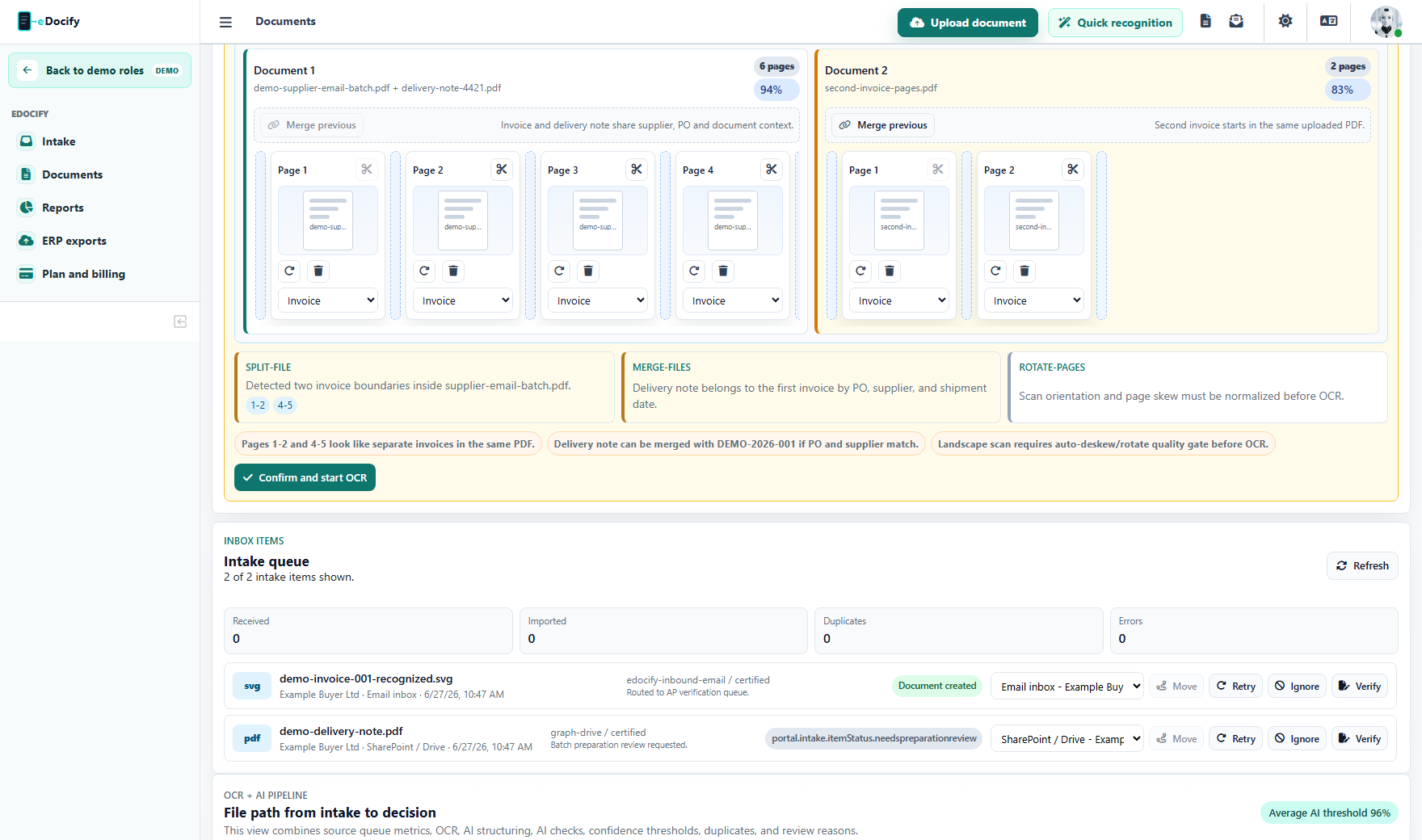
When it opens
The workbench is shown when intake detects that the uploaded batch needs confirmation before OCR:
- one PDF contains several invoices;
- several files belong to one invoice package;
- a delivery note, CMR, or purchase order should be attached or merged with the invoice;
- a page is rotated or scanned sideways;
- split or merge confidence is not high enough for automatic release;
- ZIP or email attachments contain mixed document types.
What the operator can do
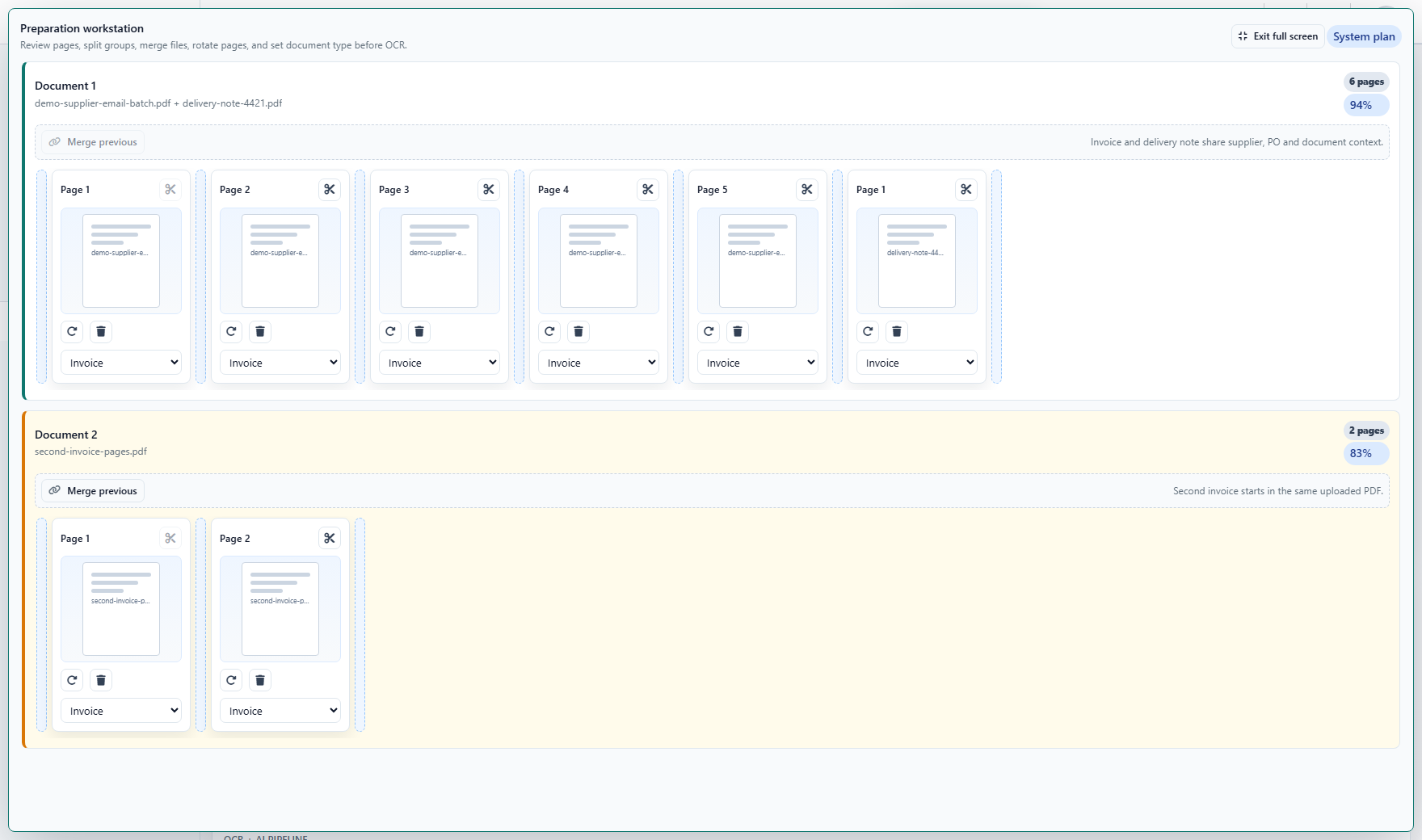
The workbench is page-based. A document is represented as a lane, and pages are represented as cards inside that lane.
| Action | What it means |
|---|---|
| Drag page | Move a page inside a document or into another document lane. |
| Split before page | Create a new document starting from the selected page. |
| Merge with previous | Combine the current document lane with the previous lane. |
| Rotate page | Rotate a selected page before OCR. |
| Remove page | Exclude a page from the prepared output. |
| Set page type | Mark a page as invoice, receipt, logistics document, attachment, or auto-detected. |
The UI is intentionally compact. It should let an accountant or intake operator fix the document structure without opening the full verification workbench.
For larger batches, the same workbench can be expanded into a full-screen preparation mode. This gives the operator more room for document lanes, page cards, drag-and-drop split points, rotation decisions, and page type selection.
Backend confirmation flow
When the user confirms the batch, the UI sends a structured manual plan to the backend. The plan contains:
- prepared document groups;
- source document ids;
- source page numbers;
- page order;
- rotation degrees;
- removed pages;
- selected document type per page.
The backend then uses the plan to create prepared PDF files:
flowchart LR
  A["Uploaded files"] --> B["Preparation Workbench"]
  B --> C["Manual plan JSON"]
  C --> D["PDF compose engine"]
  D --> E["Prepared PDFs"]
  E --> F["OCR queue"]
  D --> G["Originals marked superseded"]
Original files are preserved. Prepared files are stored separately and linked back to their source documents. The original documents are marked as superseded when the prepared PDFs replace them for OCR.
Split, merge, and rotate examples
One PDF, several invoices
A supplier sends one PDF with pages 1-2 for invoice A and pages 3-4 for invoice B. The operator splits before page 3. eDocify creates two prepared PDFs and sends both to OCR.
Invoice plus supporting document
An email contains an invoice PDF and a delivery note PDF. The operator drags the delivery note into the invoice lane or uses merge with previous. eDocify creates one prepared package for OCR and later keeps the source files in audit history.
Rotated scan
A scan arrives sideways. The operator rotates the page before OCR. The prepared PDF keeps the corrected orientation, improving OCR quality before the recognition worker starts.
Audit and traceability
Preparation actions should be auditable because they change what OCR sees. eDocify stores:
- preparation batch id;
- prepared document ids;
- source document ids;
- confirmation reason;
- prepared output status;
- source file names;
- page summary;
- confirmation timestamp;
- user who confirmed the batch.
Product behavior
This module is shared by Accounting Workspace and Enterprise IDP / OCR Operations:
- Accounting users use it for invoice batches and client emails.
- IDP operations teams use it for high-volume document batches, scanned packets, and verifier factory intake.
- Archive can use the same preparation concept when a scanned package must be normalized before indexing.
Current implementation notes
The current implementation supports:
- visual page lanes and page cards;
- split before page;
- merge with previous document lane;
- drag and drop page ordering;
- page rotation;
- page removal;
- page document type selection;
- full-screen mode for large page batches;
- structured manual plan submission;
- backend PDF composition from selected pages;
- prepared PDF creation;
- source document superseding;
- release to OCR after confirmation.
Recommended next improvement: render real page thumbnails inside the page cards instead of schematic page placeholders.