Verification Workbench
Verification Workbench is where humans correct what OCR and AI could not safely decide.
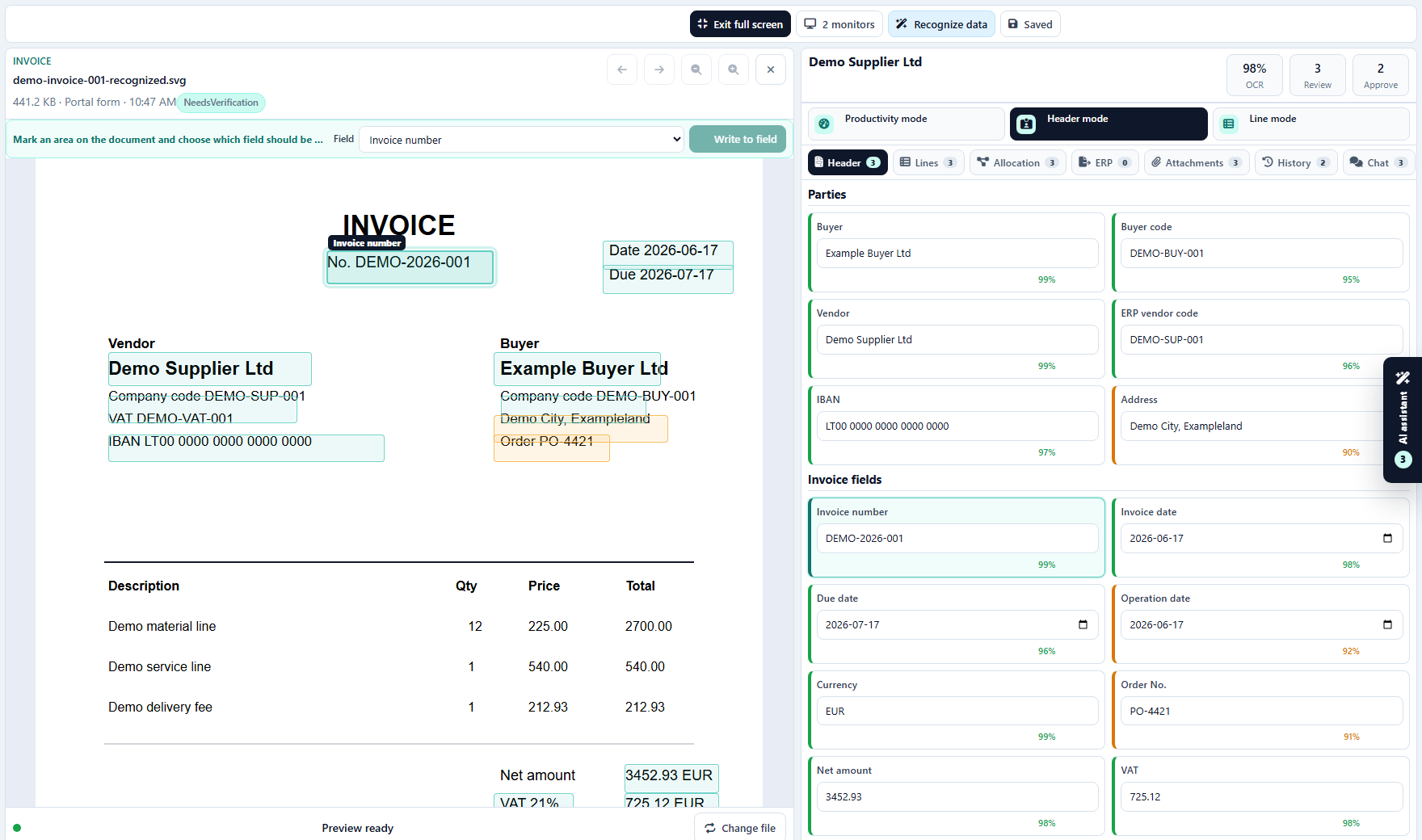
Design goal
The verifier should not read the whole document from the beginning. The system should guide the user to:
- missing required fields;
- low-confidence fields;
- inconsistent totals;
- suspicious dates;
- unknown suppliers;
- line items that need approval or correction;
- duplicate documents;
- export blockers.
Work modes
Productivity mode
Default mode for professional verifiers. It shows:
- next focus field;
- confidence heatmap;
- missing fields;
- QA requirement;
- productivity metrics;
- action shortcuts.
The AI assistant is intentionally not a permanent wide panel. It should stay collapsed as an edge drawer and open only when the verifier asks for help, so the main screen remains focused on the document and fields.
Header mode
Used for invoice-level data:
- buyer and seller;
- invoice number;
- invoice date;
- due date;
- VAT number;
- IBAN;
- totals;
- currency;
- payment terms.
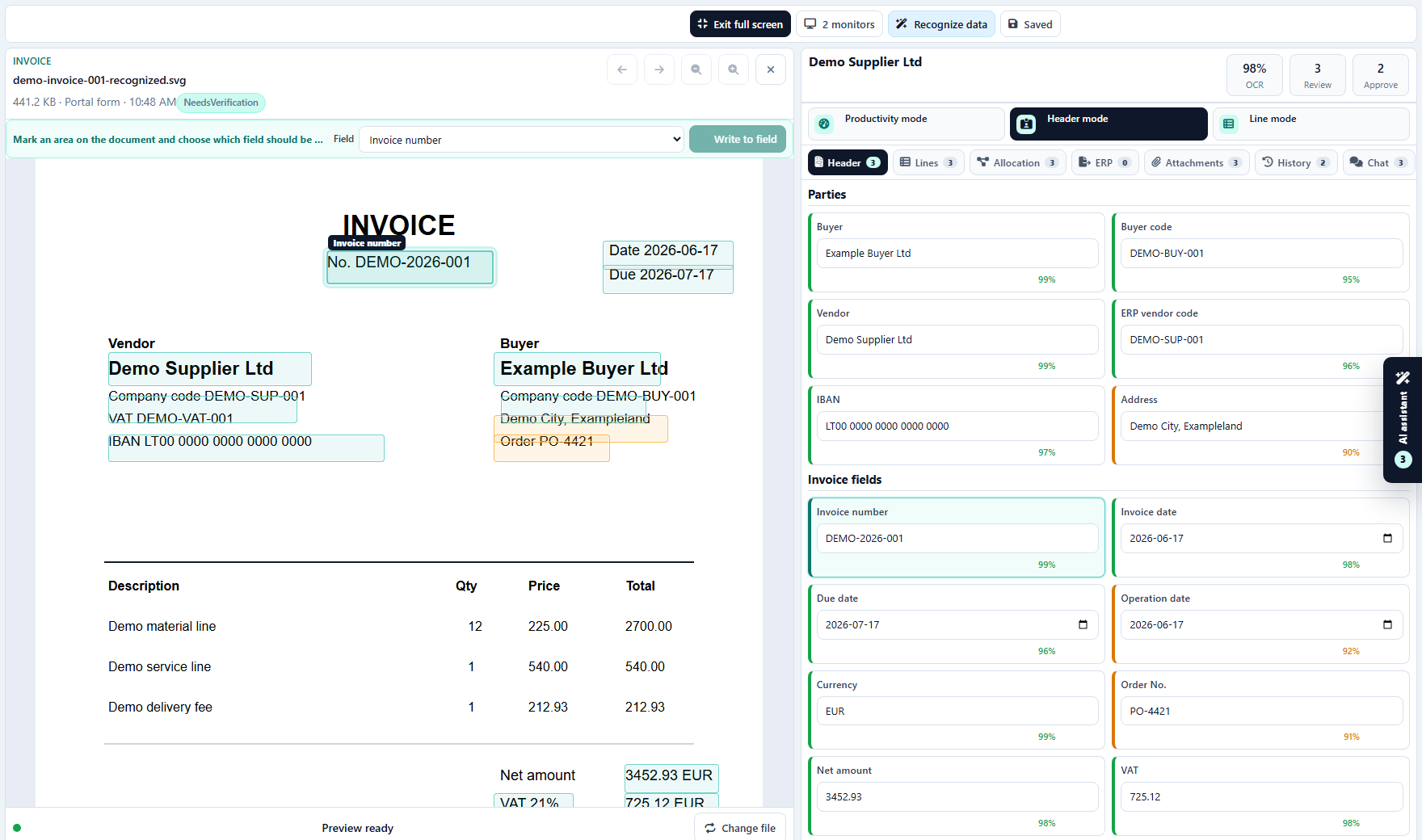
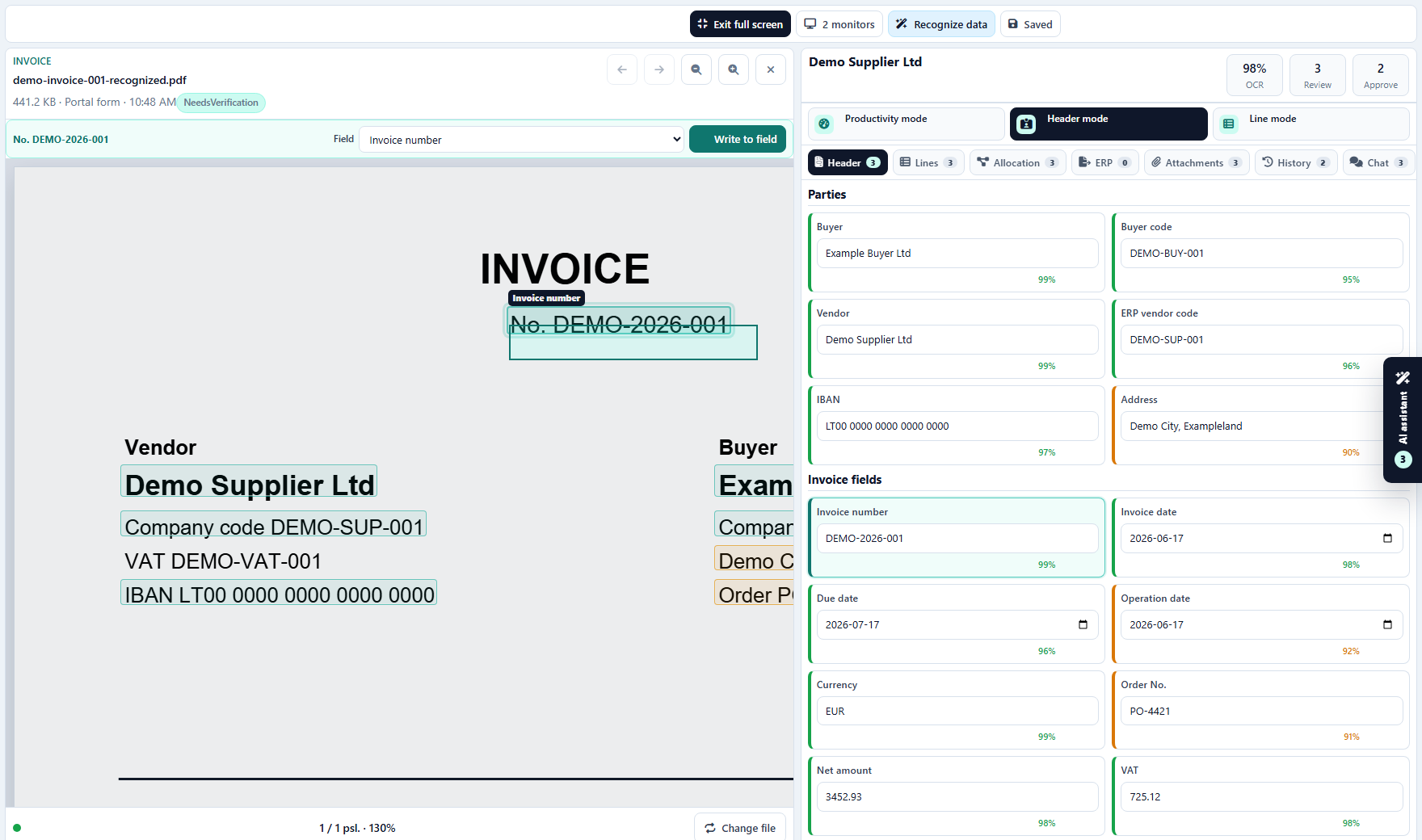
Header mode is the best place to verify one invoice quickly. The document remains visible while the form shows recognized values, confidence, field status, and validation messages. Date fields should use date pickers, numeric fields should use normalized number formatting, and dictionary fields should offer lookup values.
Lines mode
Used for line item review:
- description;
- product or service code;
- quantity;
- unit;
- unit price;
- VAT rate;
- line total;
- cost center;
- project;
- approver;
- line status.
Large documents with hundreds or thousands of lines should use paging, virtual scrolling, keyboard navigation, and bulk accept actions.
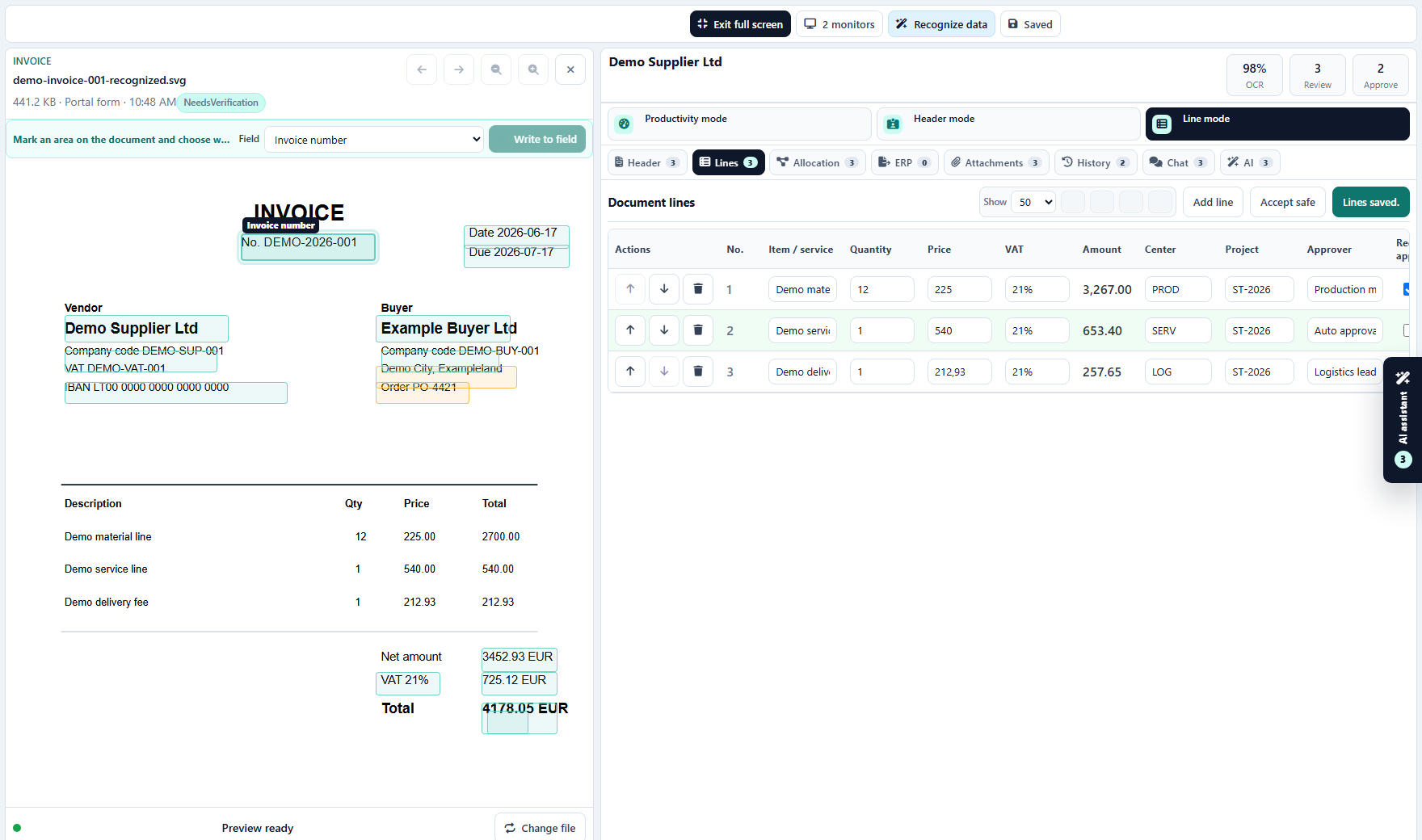
Line mode must be designed for serious invoices, not only three-line demos. The first column should contain row actions so users do not scroll horizontally to move, duplicate, delete, or approve a line. Large line tables should support:
- virtual scrolling;
- sticky first action column;
- keyboard move up/down;
- accept all safe lines;
- line-level approval assignment;
- cost center and project lookup;
- bulk correction by selected rows.
Focus mode
Focus mode hides non-essential navigation and maximizes the document plus fields. This is the recommended mode for daily verification.
Dual monitor mode
Planned mode for professional teams. One screen shows only the document, another shows fields or lines.
Region OCR
Region OCR lets a verifier select an area in the document and write the result into a field. The region engine can be configured separately from full-document OCR.
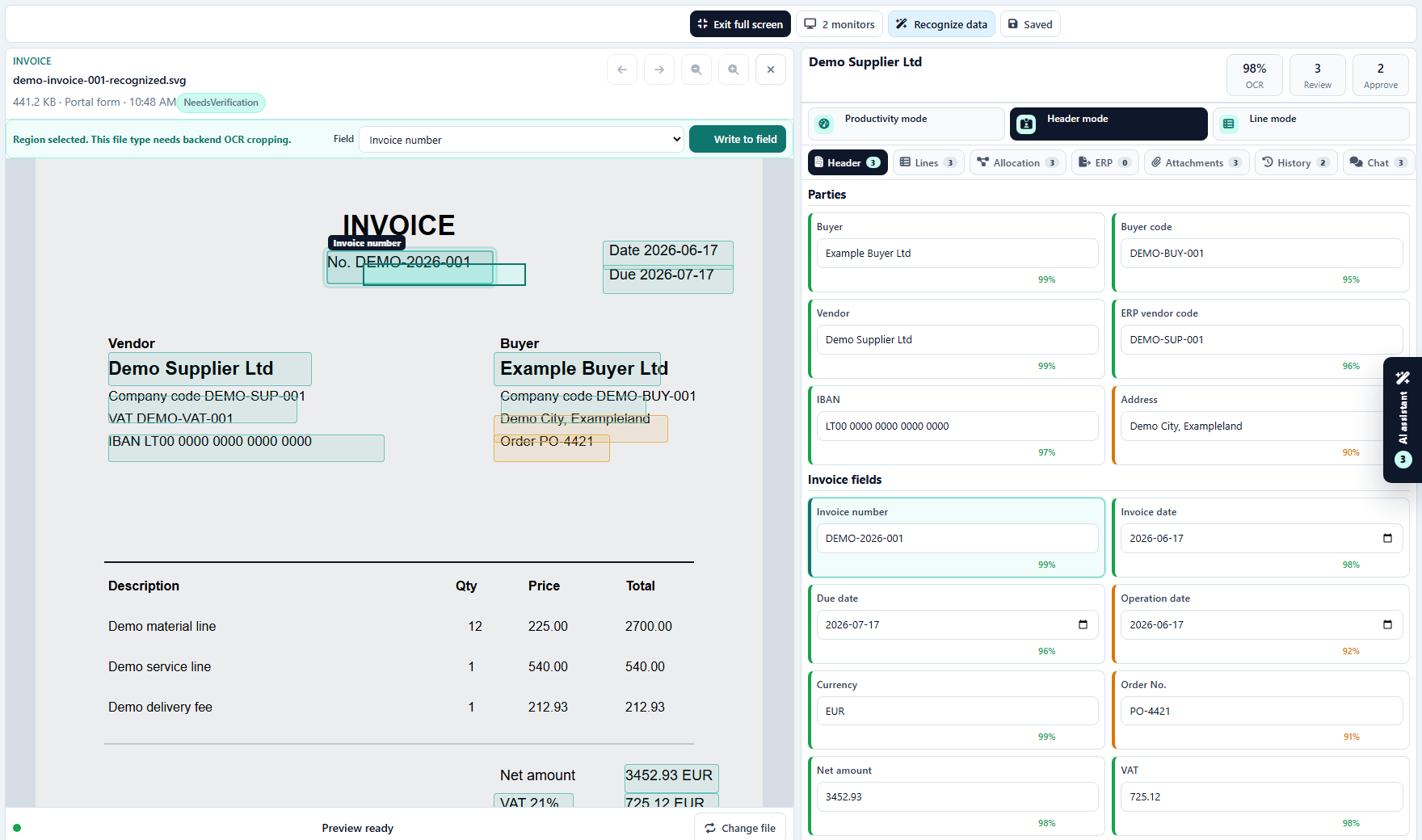
Recommended use:
- Tesseract or RapidOCR for fast local region OCR;
- premium AI fallback when local OCR confidence is low;
- keep the selected region and field update in history.
The selected zone must stay aligned when the verifier zooms or scrolls the document. The UI stores normalized document coordinates rather than screen pixels, so the selection remains attached to the same invoice area after zoom changes.
Document overlay
Recognized OCR zones should be shown on the document:
- all recognized regions as soft rectangles;
- focused field region highlighted stronger;
- line item region highlighted when a line is focused;
- low-confidence regions in warning color;
- missing field remains unbound.
Field focus and document focus should work together. When a user enters Invoice number, the invoice number region is highlighted in the preview. When a line is focused, the matching row on the document is highlighted. This reduces eye movement and helps the verifier trust the value source.
Attachments and document conversation
Document cards also need supporting context, not only fields.
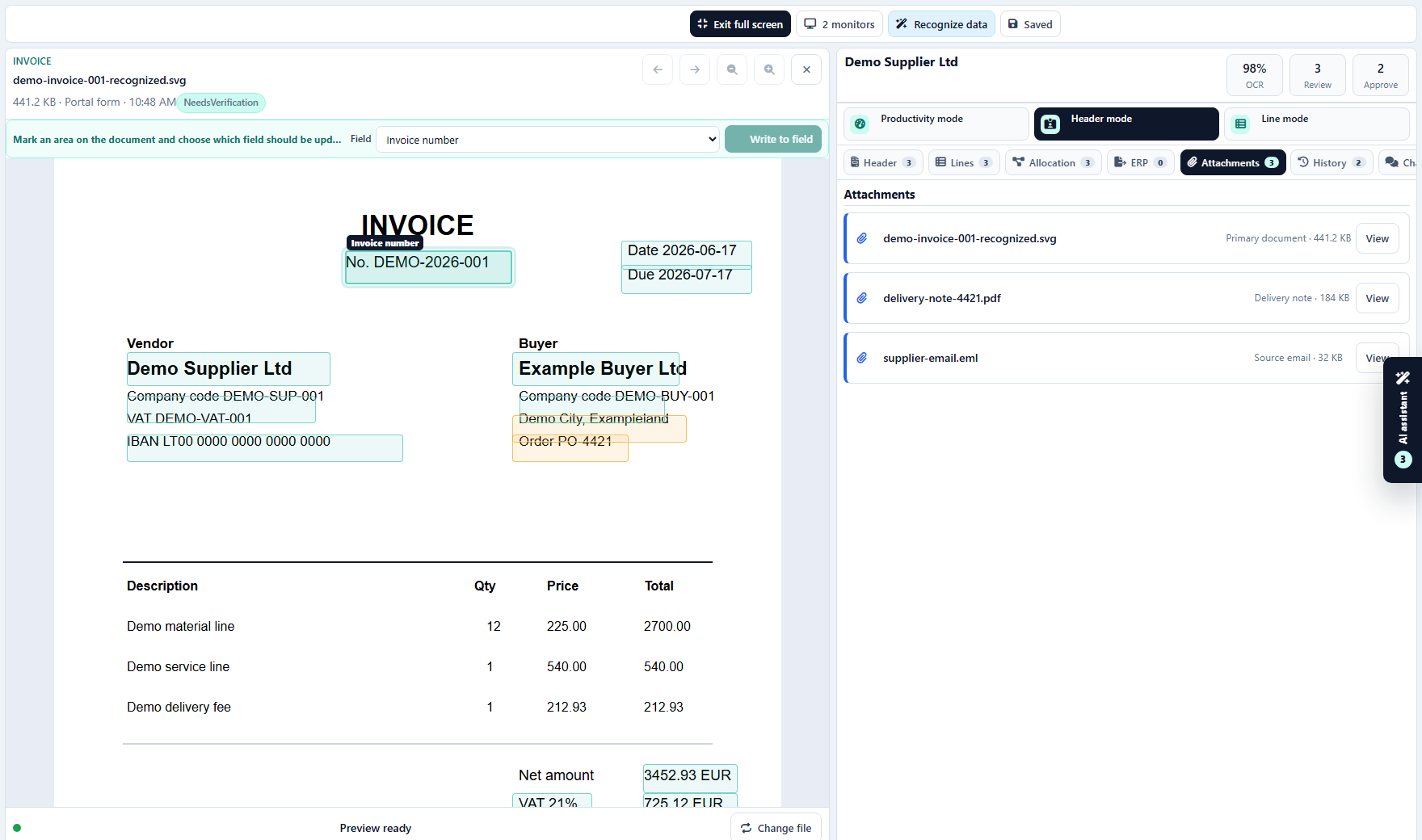
Attachments can include:
- original email;
- delivery note;
- purchase order;
- CMR or logistics document;
- signed approval evidence;
- exported payload or ERP response.
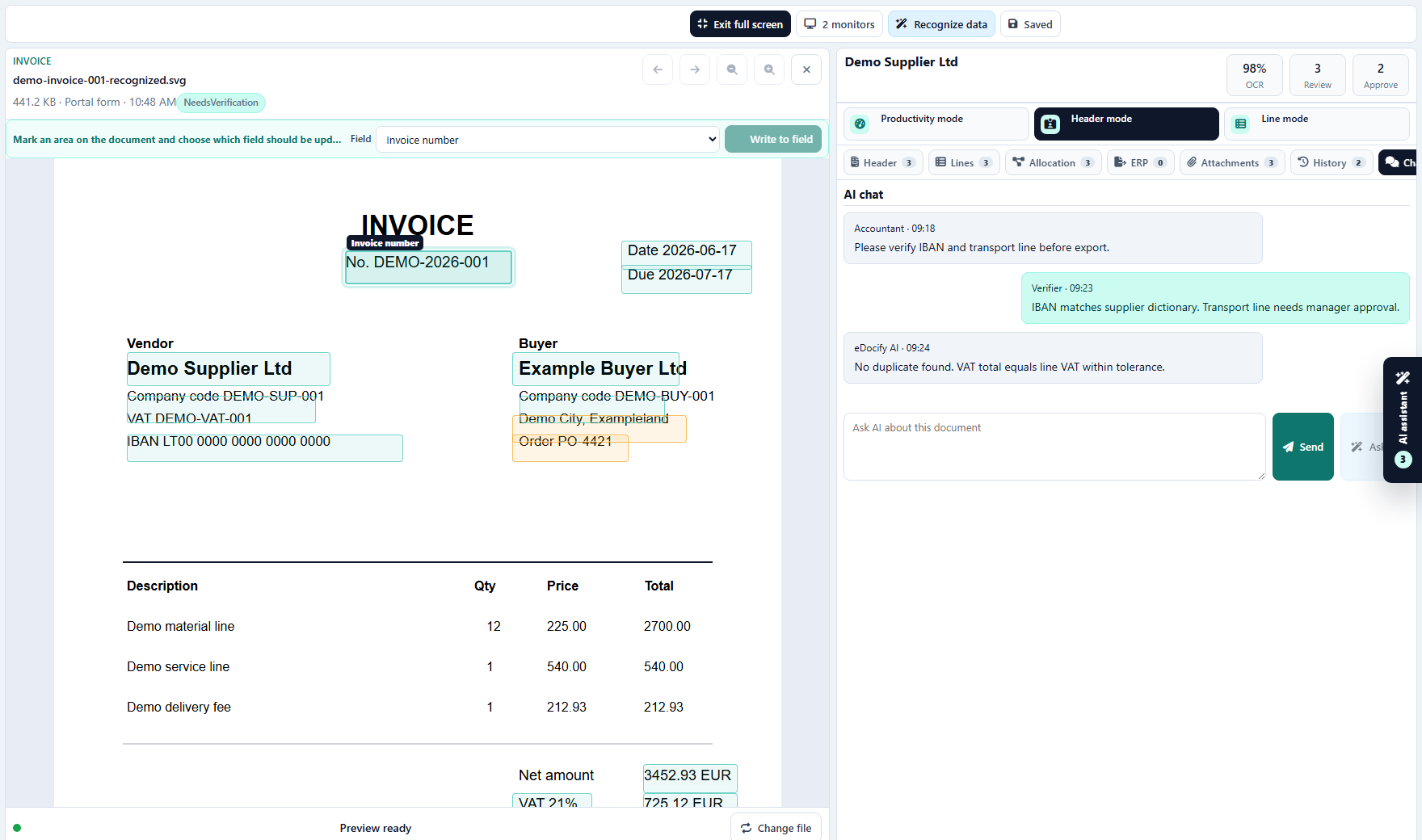
The document conversation keeps accountant, verifier, approver, and AI notes in one place. This is useful when a verifier needs to ask why a line was rejected, why a supplier lookup failed, or why ERP dry-run is blocked.
Locks and concurrency
Enterprise verification requires locks:
- document is locked when a verifier opens it;
- heartbeat keeps the lock active;
- another user sees who holds the lock;
- takeover can require permission or reason;
- lock events are audited.
Keyboard-first work
Recommended shortcuts:
| Action | Shortcut |
|---|---|
| Next field | Alt+N |
| Previous field | Alt+P |
| Accept safe fields | Alt+A |
| Lines mode | Alt+L |
| Next line | Alt+ArrowDown |
| Previous line | Alt+ArrowUp |
| Accept safe lines | Alt+X |
| Save | Alt+S |
| Refresh queue | Alt+R |
| Duplicate queue | Alt+D |
| Bulk OCR visible queue | Alt+B |
| Approve | Alt+Enter |
Verifier quality metrics
Track:
- documents per hour;
- fields corrected per document;
- lines corrected per document;
- first-pass yield;
- rework count;
- hotkey usage;
- SLA status;
- QA sample failures;
- average time locked.
These metrics should improve the product and team process, not become blind pressure on users.