Accounting Workspace role guide
Accounting Workspace is the accountant-facing product. It must feel simpler than the professional verification factory, while still supporting advanced administration, approvals, audit, and ERP export.
Every screenshot below was captured from the real local eDocify app in English with a product-scoped demo sandbox session.
Role and menu matrix
| Role | Visible menu in screenshot audit | Primary job |
|---|---|---|
| Sandbox admin | Quality guarantee, Rivile certification, Portal, Intake, Documents, Reports, Audit, Verification, Clients, Lists, Field rules, Hierarchy, Integrations, ERP exports, Plan and billing, Mobile app | Configure the accounting sandbox and keep the AP flow ready. |
| Accountant | Intake, Documents, Reports, ERP exports, Plan and billing | Upload documents, review accounting lists, prepare ERP-ready batches. |
| Verifier | Documents, Reports, Verification | Correct OCR fields and line items quickly. |
| Approver | Documents, Reports | Approve or reject documents and line-level approval tasks. |
| Auditor | Quality guarantee, Rivile certification, Documents, Reports, Audit | Review process evidence without changing operational data. |
| Integration admin | Rivile certification, Portal, Reports, Lists, Integrations, ERP exports, Plan and billing | Configure source and ERP routes. |
Sandbox admin workspace
The sandbox admin sees the complete accounting setup, but it is still product-scoped. This role configures company, intake, OCR, lists, field rules, and ERP dry-run readiness.
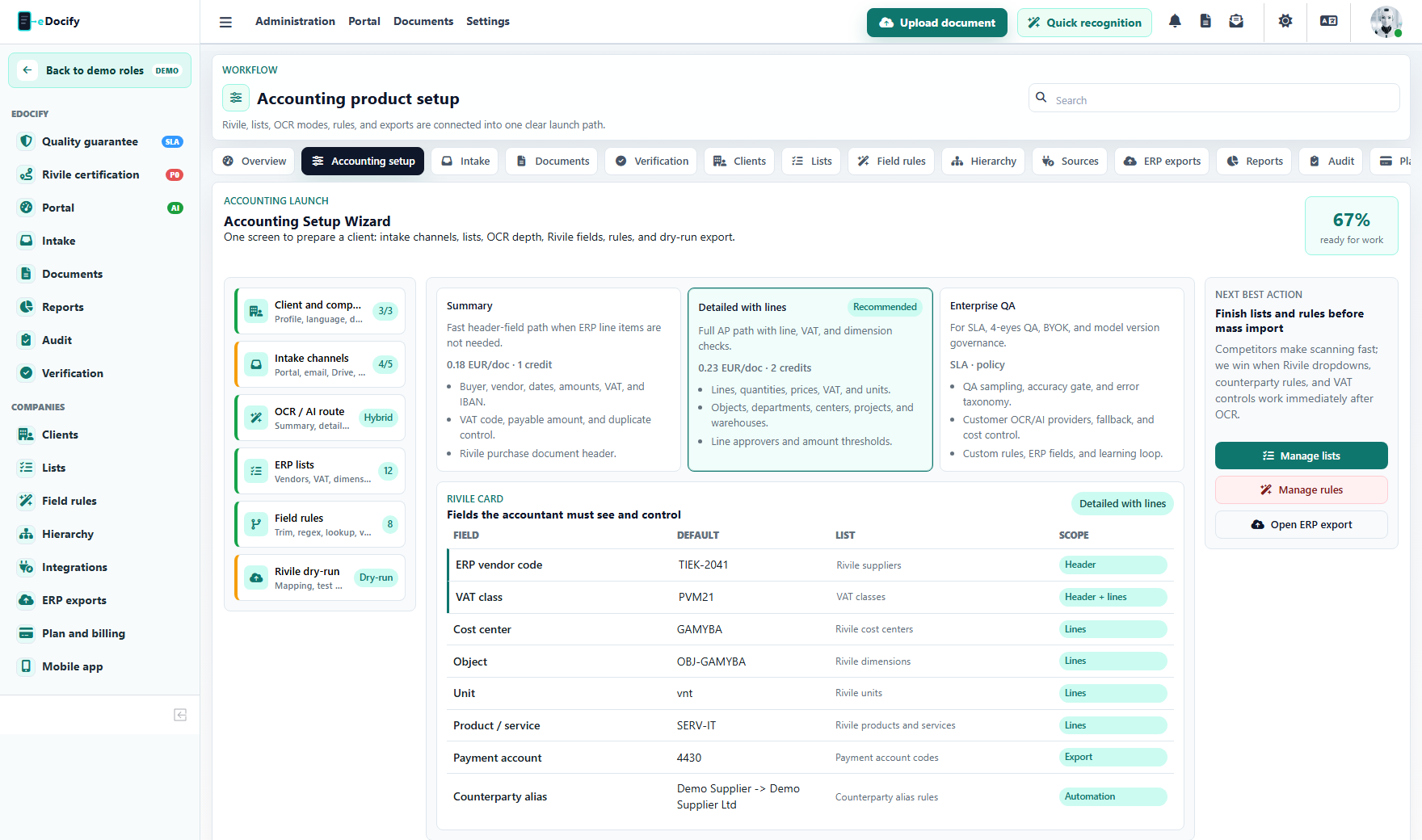
Use this role for:
- client/company setup;
- inbox and intake routing;
- OCR/AI provider choice;
- field processing rules;
- reference lists;
- ERP export profiles;
- billing and product plan visibility.
Client profile fields
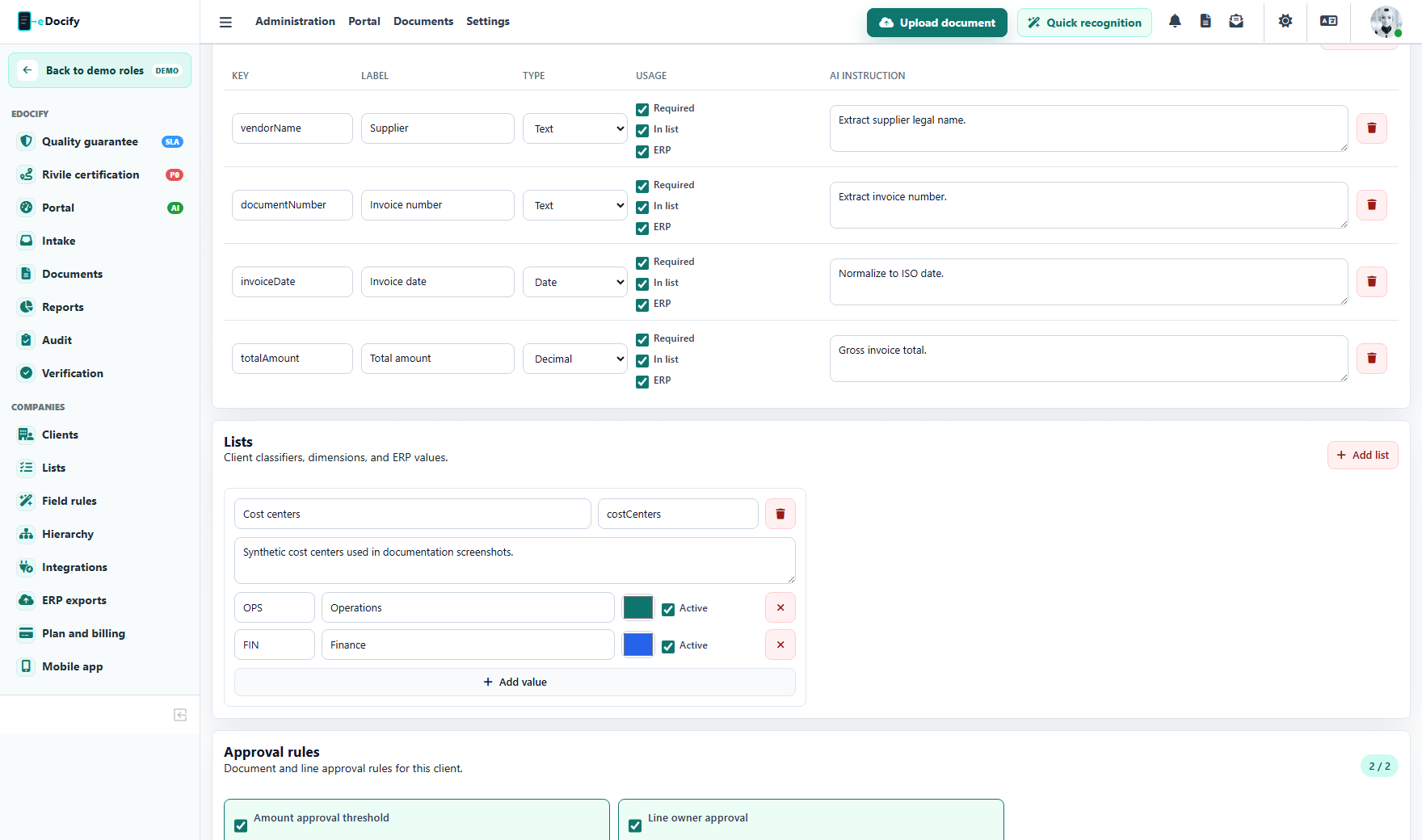
The sandbox admin configures which fields appear in the document card, which fields are required, which fields become list columns, and which fields are sent to ERP mapping.
Reference lists and lookup bindings
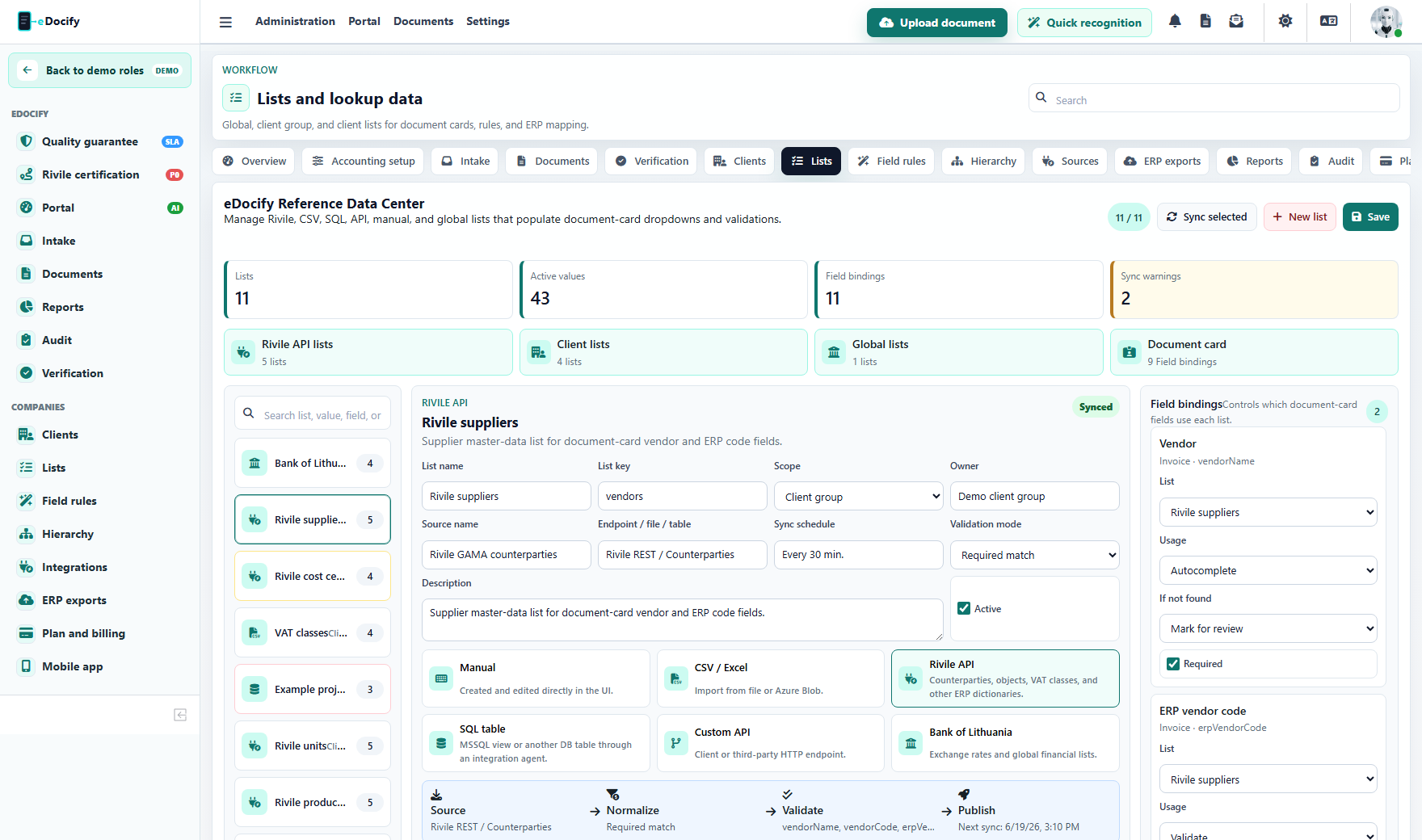
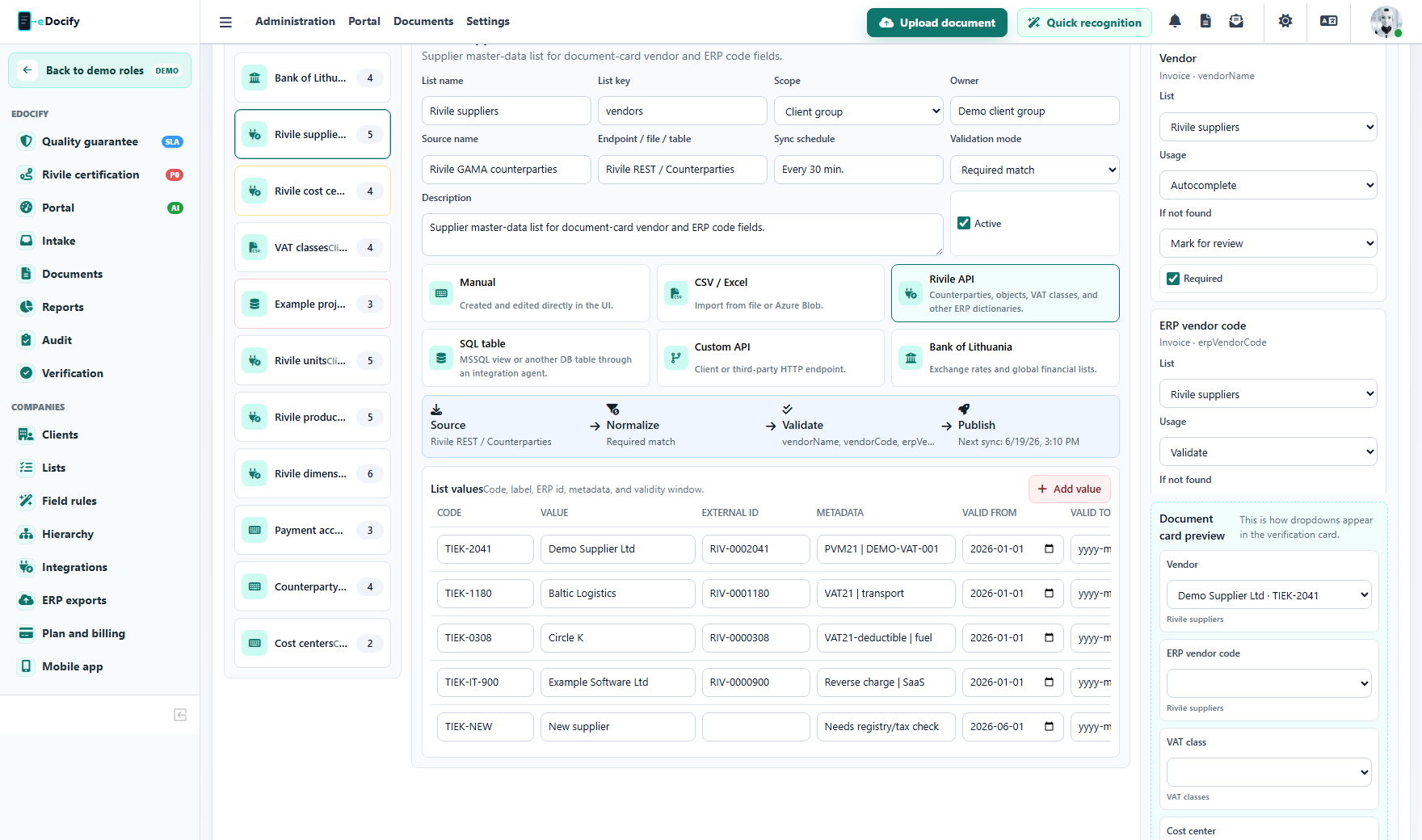
Accounting teams often need supplier lists, cost centers, projects, departments, ERP vendor codes, currency rates, and line approvers. These can be managed as reference lists and then bound to document fields.
Hierarchy and governance
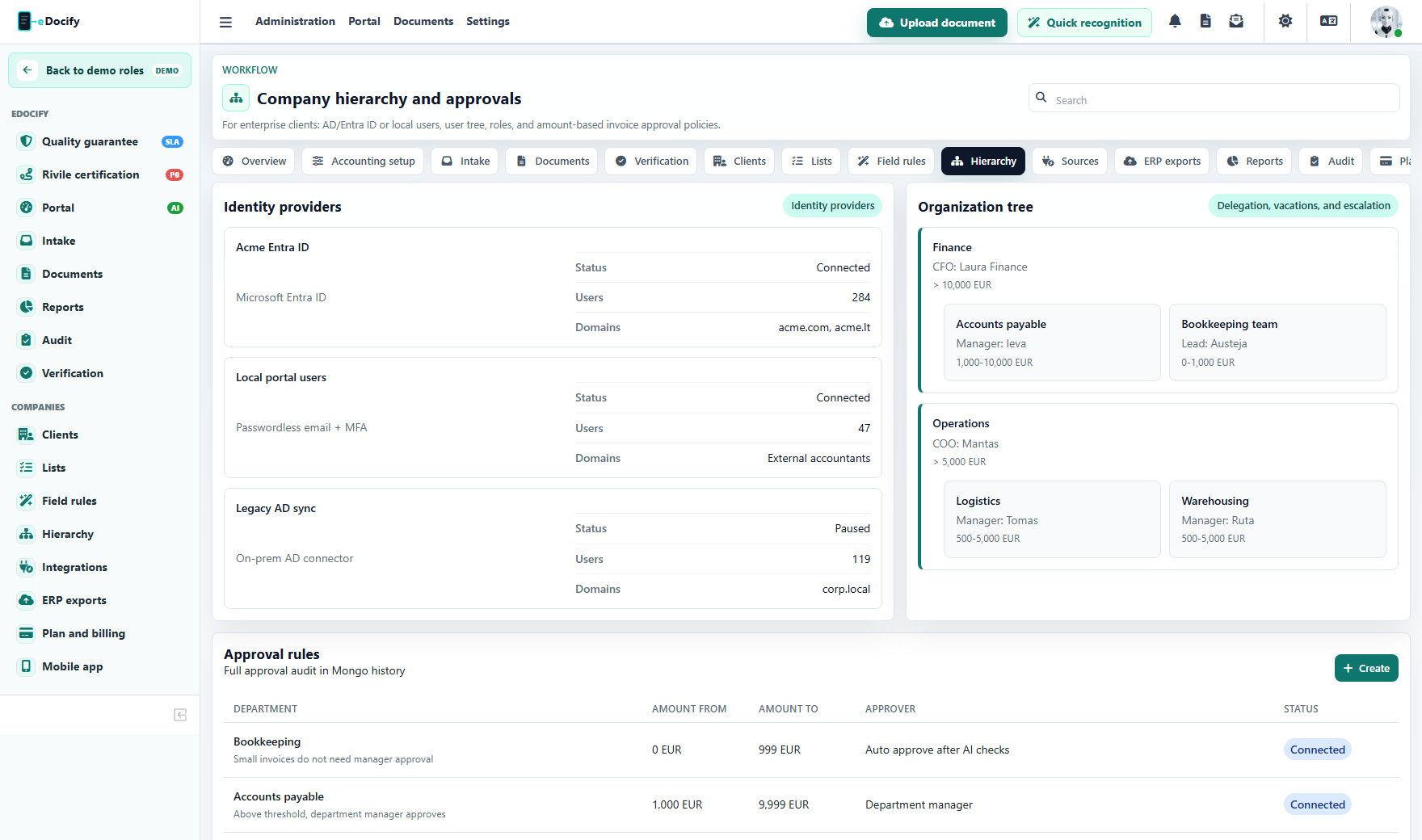
Client hierarchy defines tenant groups, companies, users, roles, delegations, approval thresholds, and product access. This is where the same role becomes product and client scoped.
Accountant intake workspace
The accountant starts in intake. The screen is intentionally simpler than the verifier workbench: batch upload, client/source/document type metadata, OCR profile selection, tags, and preparation policy.
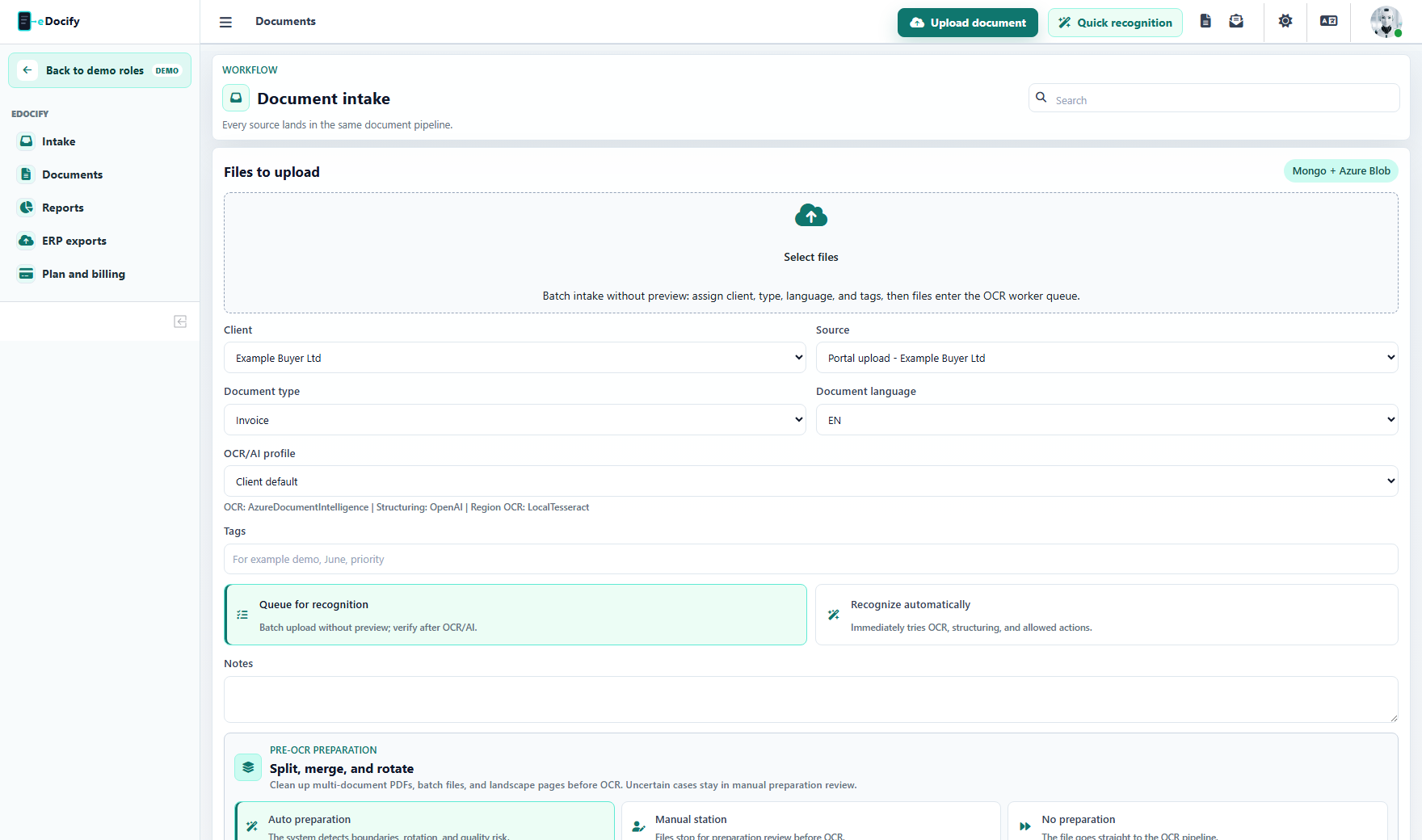
Expected behavior:
- batch upload can queue files without preview;
- one batch can contain several files or ZIP/email attachments;
- split/merge/auto-deskew preparation can stop uncertain batches before OCR;
- quick recognition remains available for one-off interactive OCR;
- the accountant does not see global AI Learning or system administration;
- documents move to OCR/AI and then verification or approval queues.
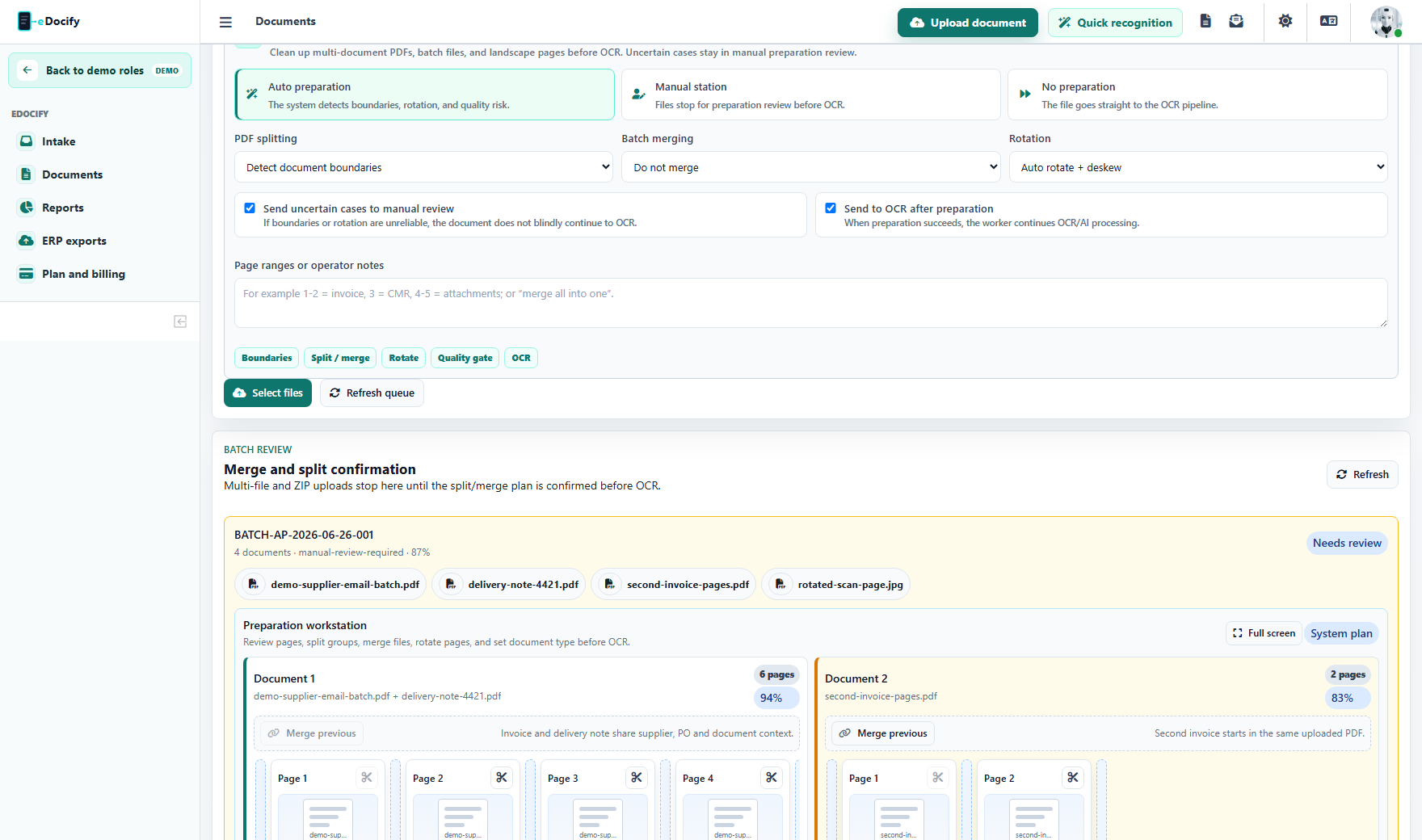
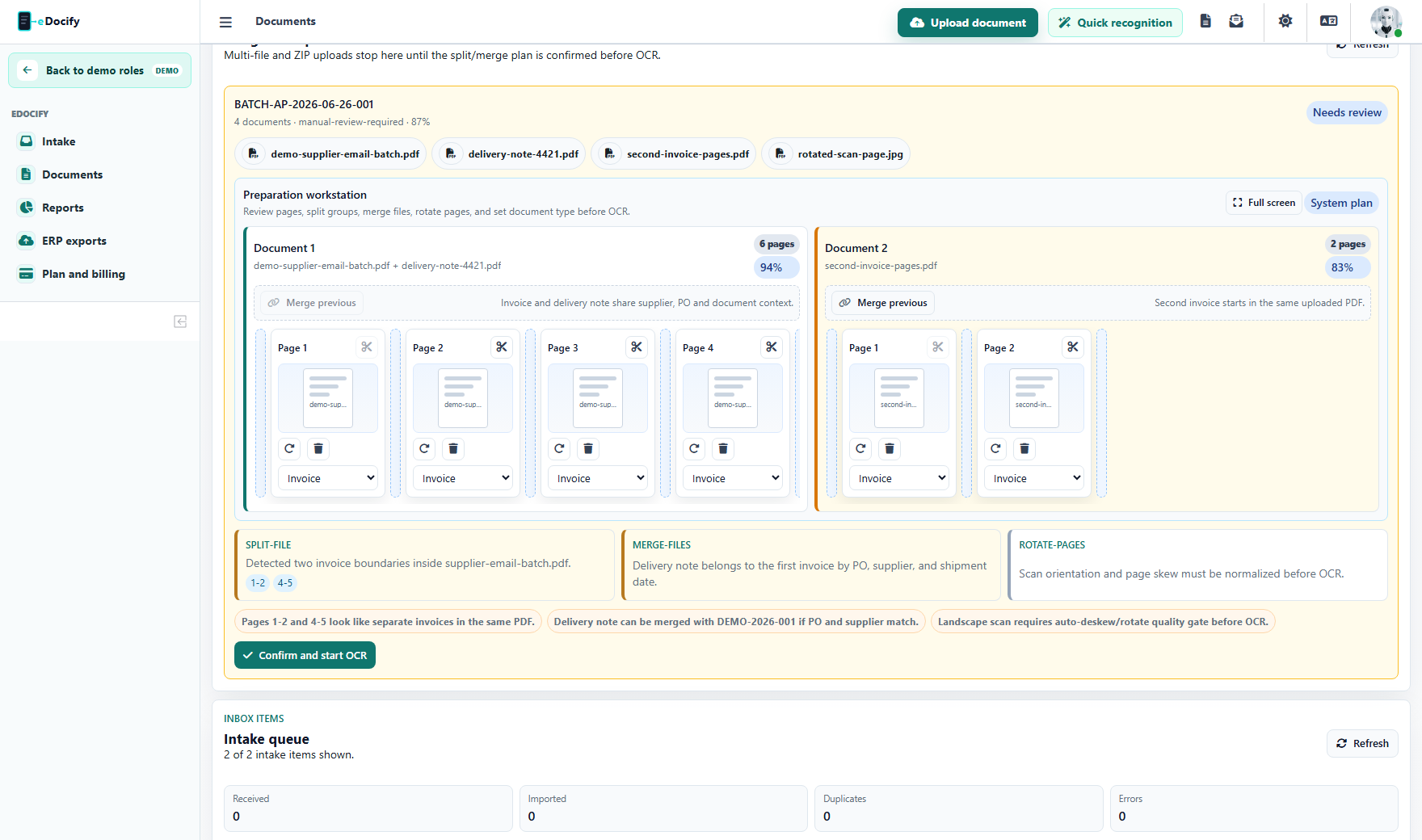
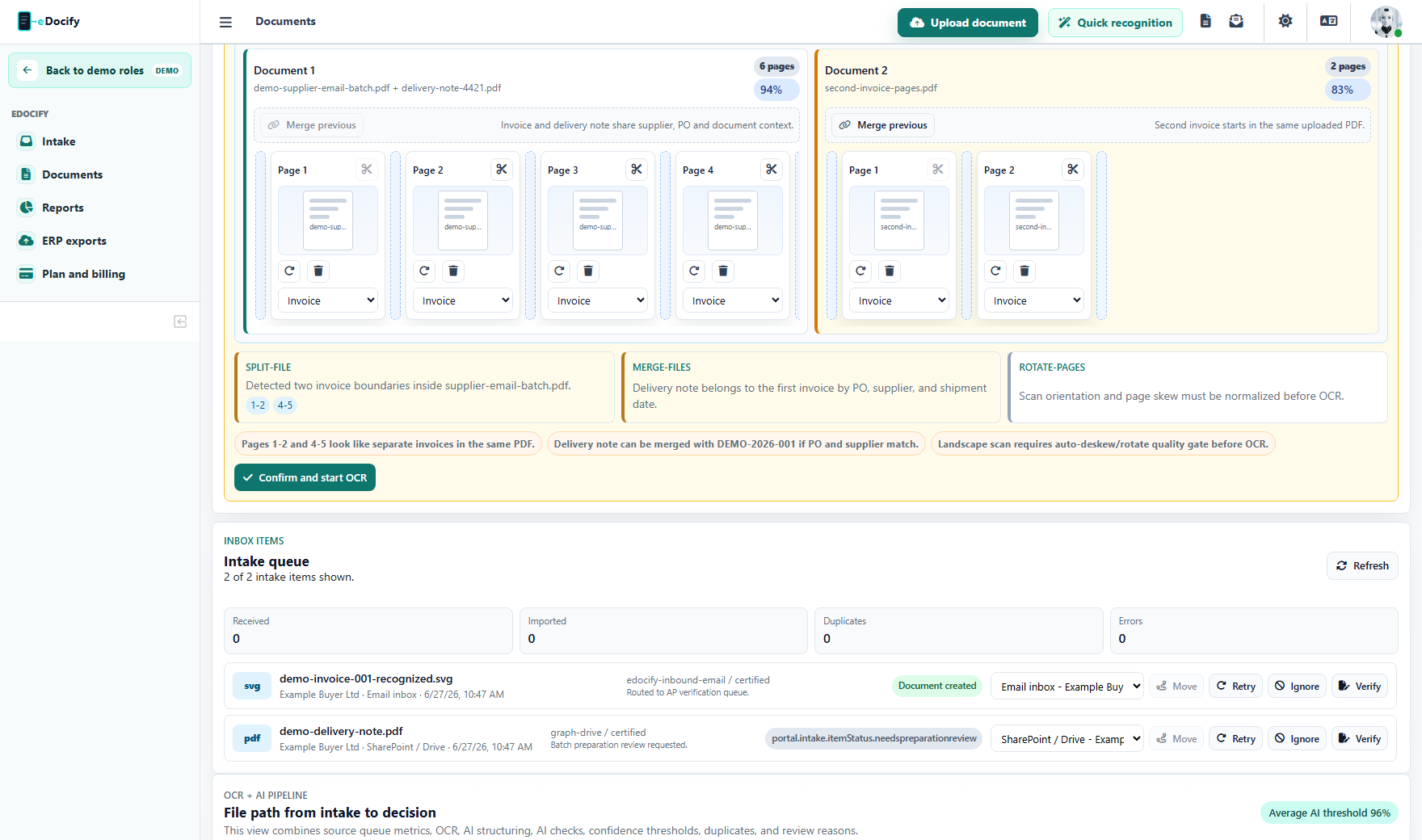
The accountant can also open the page-level preparation workbench before OCR. This is where a mixed email or ZIP batch becomes a clean set of documents: pages can be moved, split, merged, rotated, removed, and typed before the backend creates prepared PDFs.
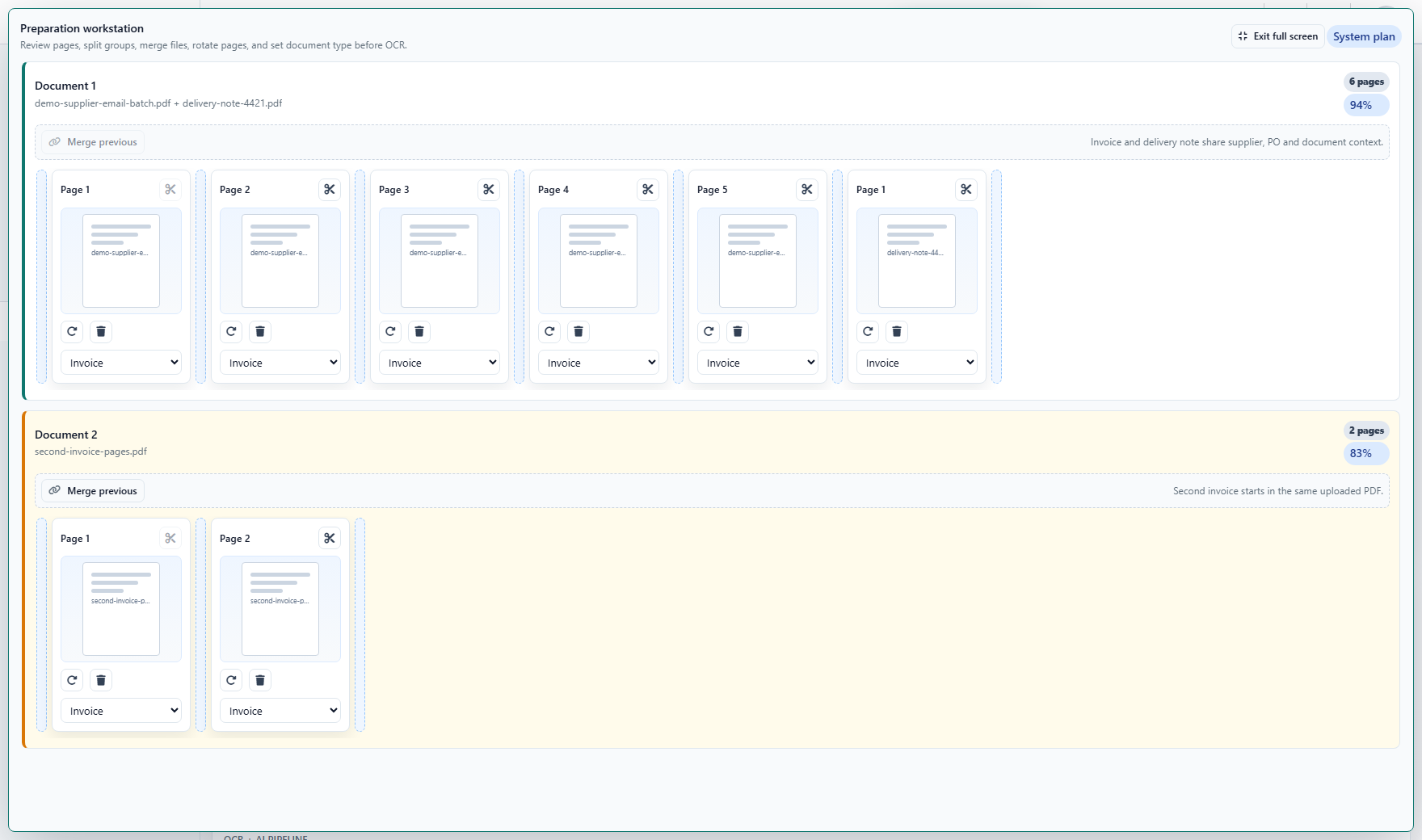
When the batch has many pages, the same workbench can switch to full-screen mode so the accountant can work with larger page cards and more visible lanes.
Accountant document list
The accounting list is the daily control screen: statuses, confidence, client, vendor, amount, source, saved views, and export readiness.
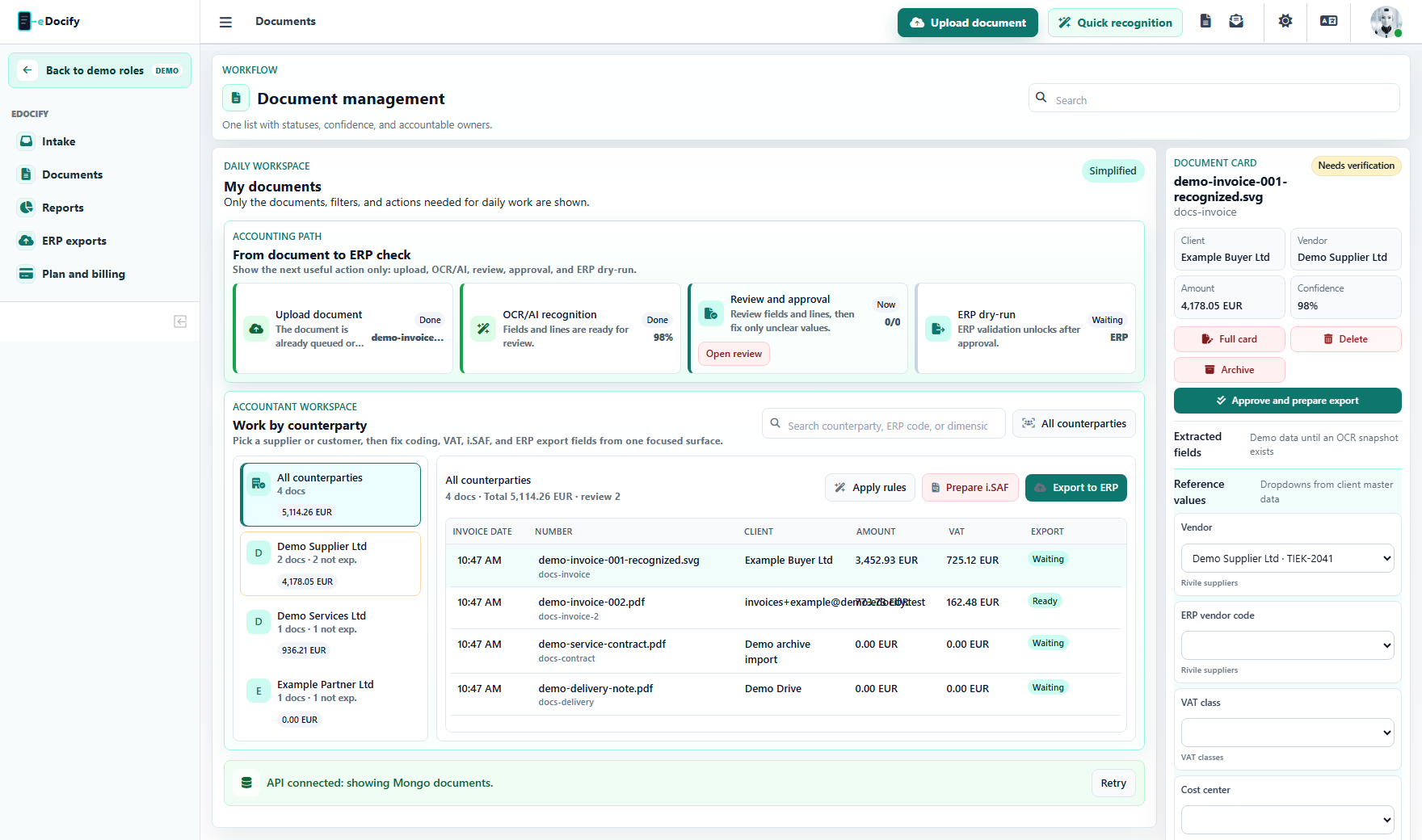
This screen should stay dense but not overloaded. The user should immediately understand which invoices need attention and which are ready for ERP.
Verifier workbench
The verifier uses the professional workbench: preview on the left, header/line modes on the right, region OCR, two-monitor mode, keyboard shortcuts, and an assistant drawer instead of a permanent side panel.
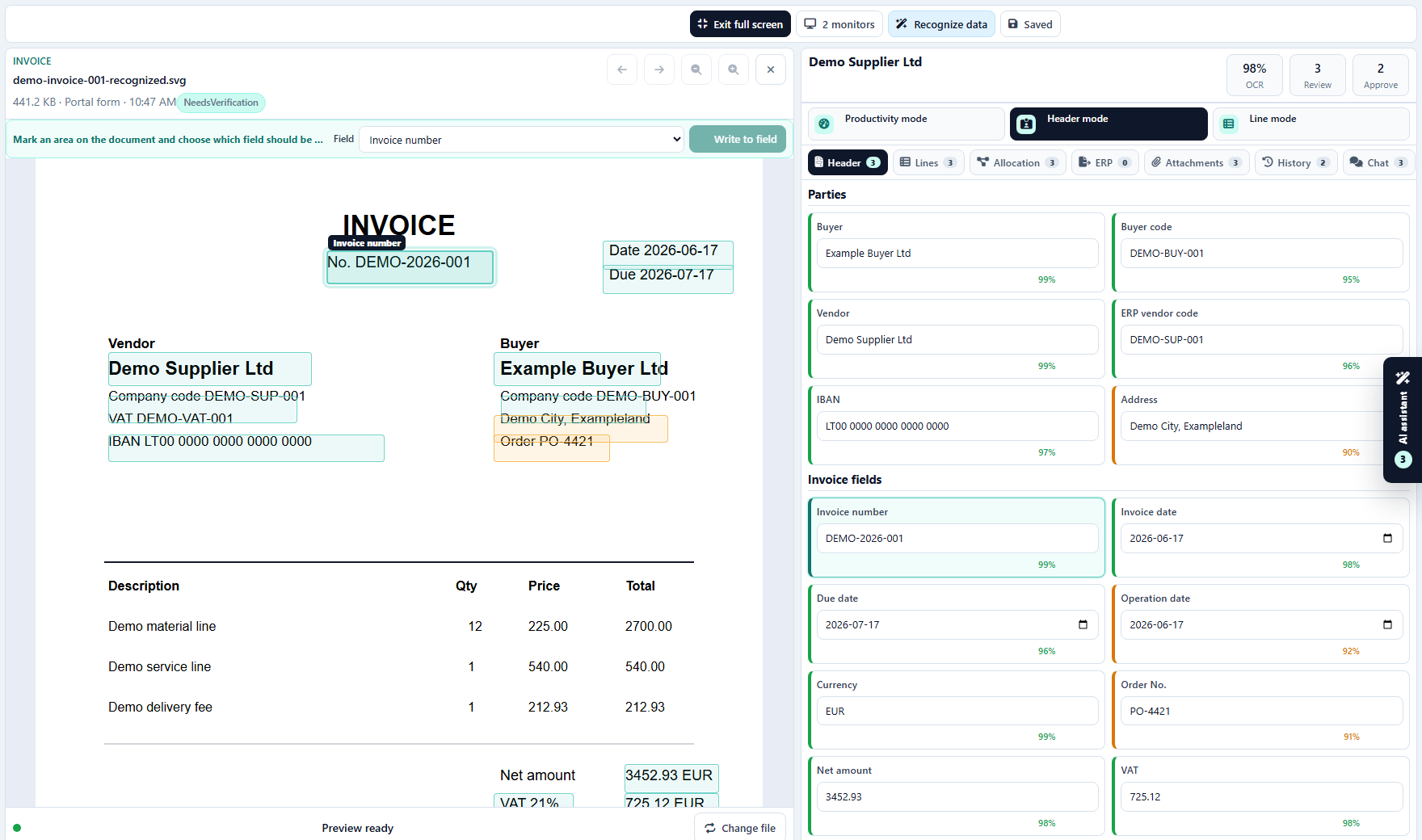
Verifier acceptance criteria:
- fields and lines are separate modes;
- safe fields can be accepted quickly;
- focused fields should map to highlighted document zones;
- line work must support large invoices without horizontal hunting;
- the verifier does not need accounting setup, billing, or admin screens.
Approver queue
Approvers should not see the whole OCR factory. They need the assigned approval queue, document/line context, risk, amount, and approve/reject decisions.
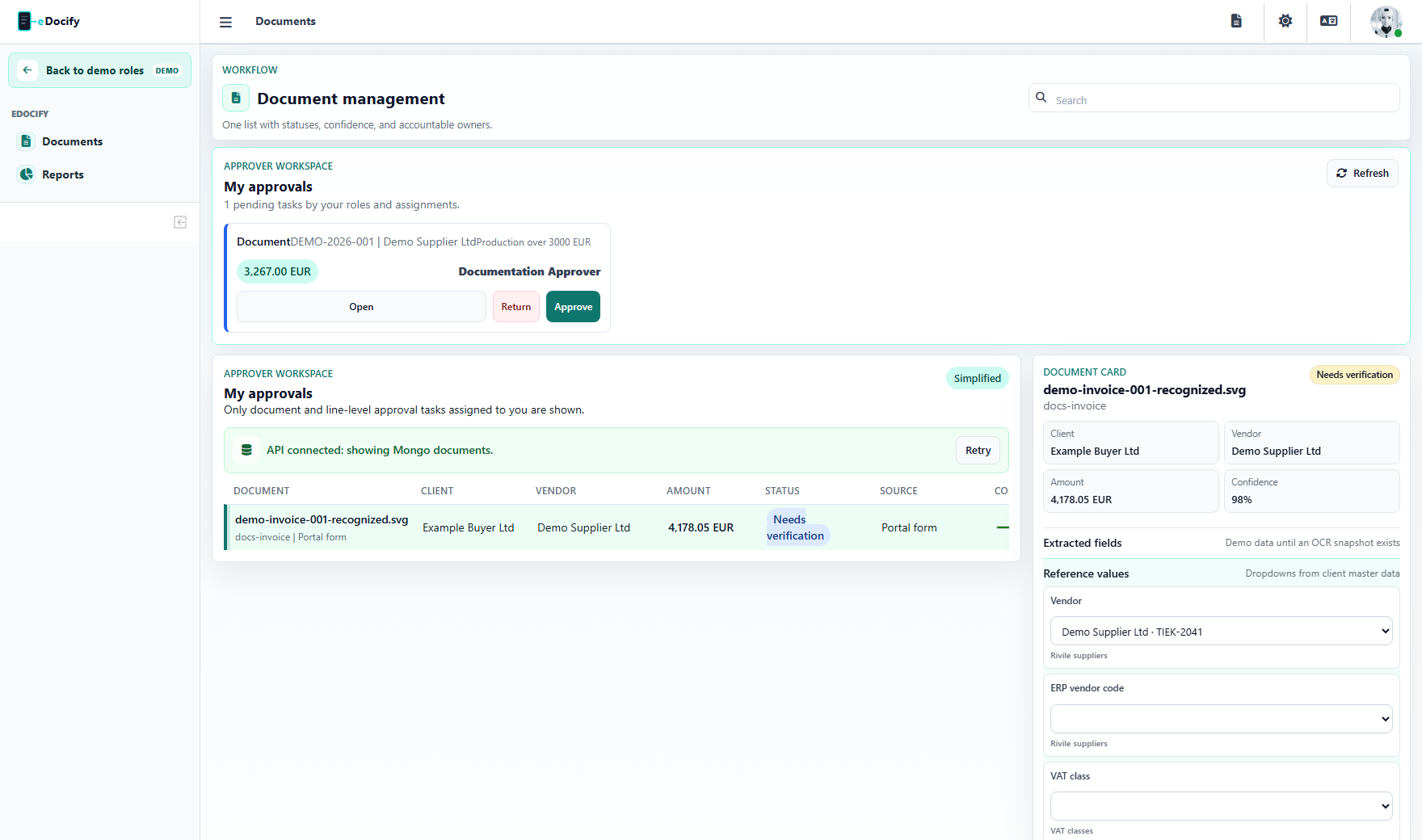
Approval rules can be document-level or line-level. Amount thresholds, substitutions, and VIP roles belong to configuration, not the approver's daily UI.
Examples:
- document total exceeds the manager threshold;
- supplier bank account changed;
- transport line is routed to logistics;
- IT service line is routed to IT;
- project line is routed to a project owner;
- low-confidence or duplicate risk requires four-eyes review.
Auditor audit journal
The auditor view is read-focused: events, filters, evidence, user actions, document changes, and export history.
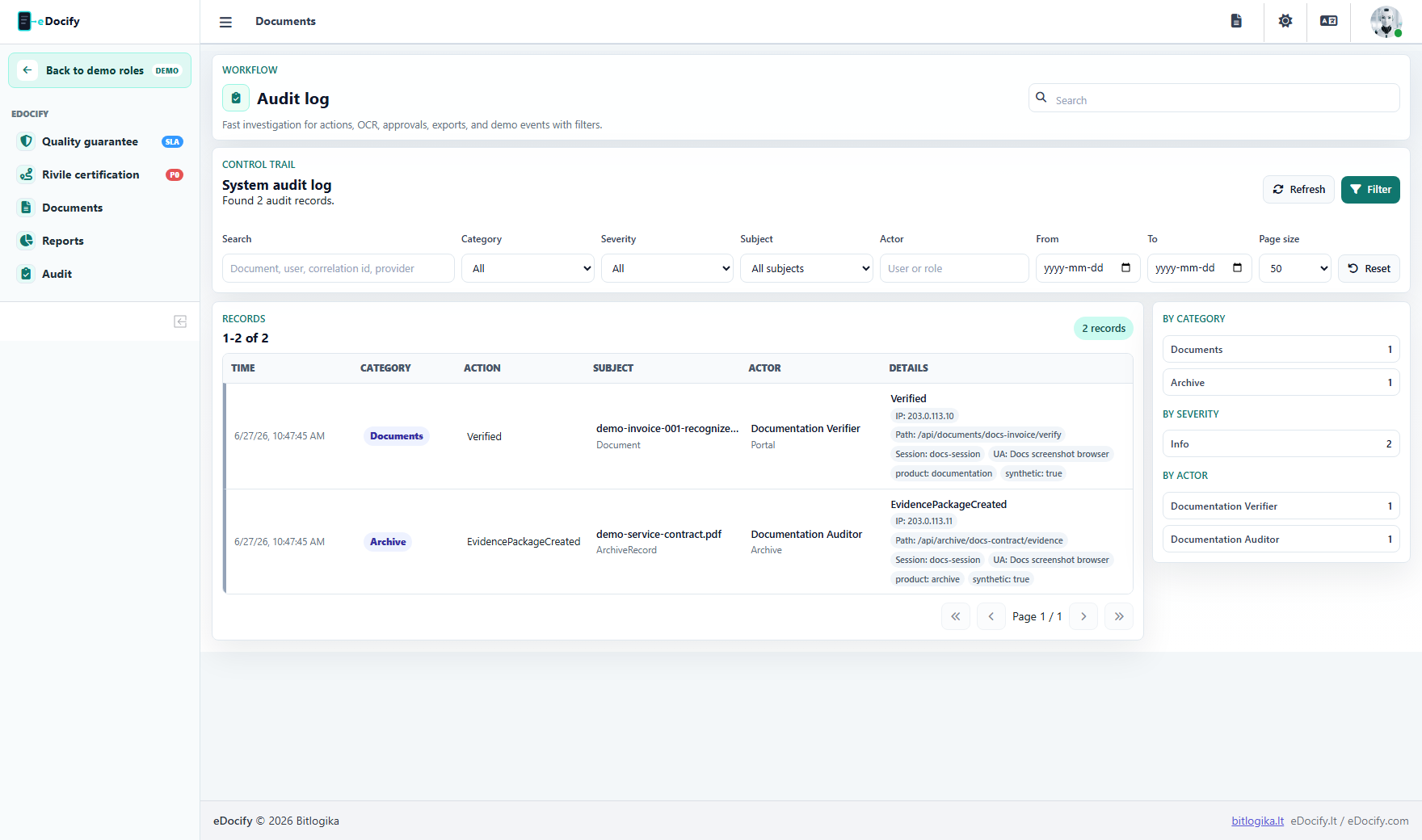
Auditor screens must show what happened, who did it, when it happened, from which tenant/client context, and why the system made each routing decision.
Integration and ERP export owner
The integration admin manages ERP routes, dry-run status, retries, payload visibility, and connector health.
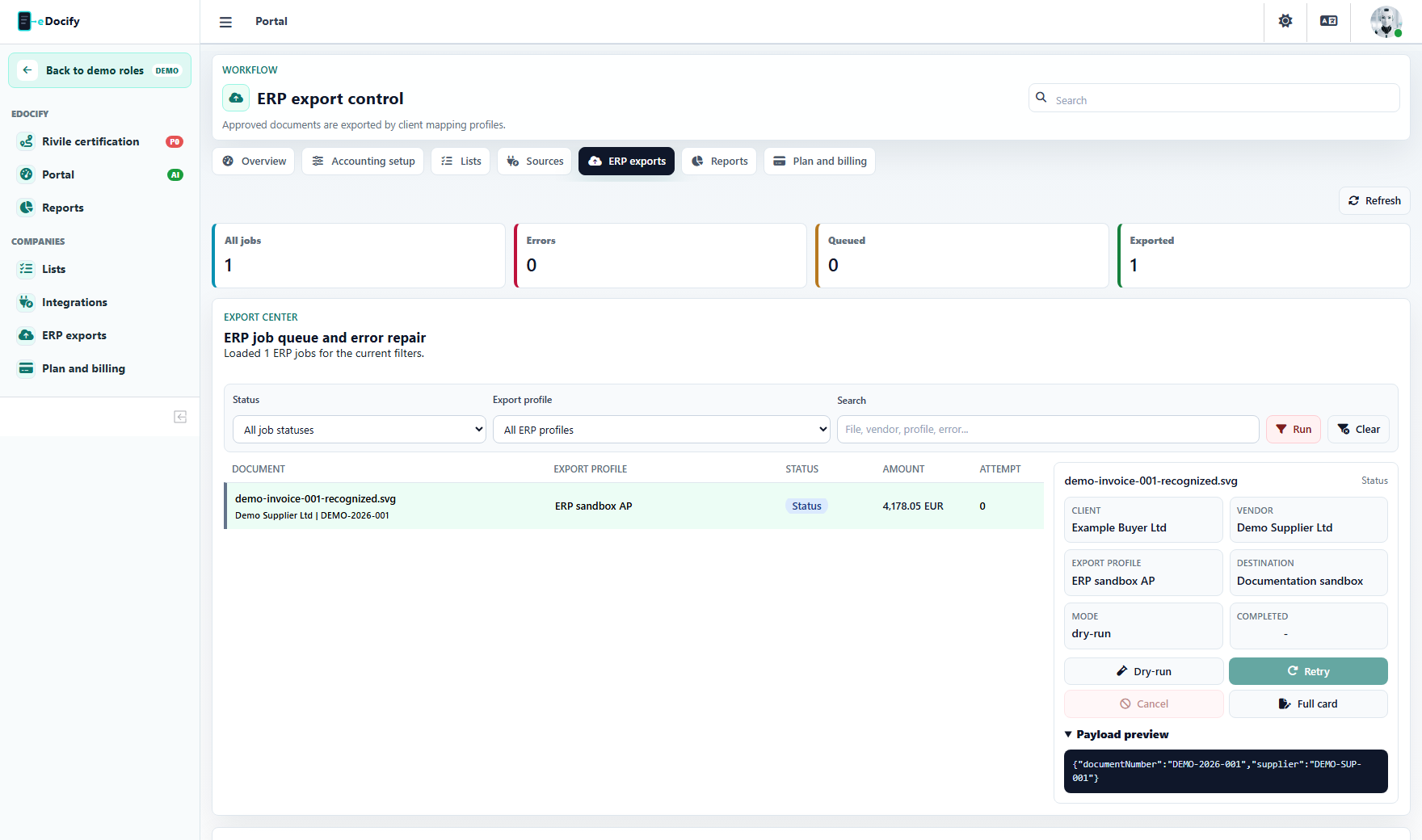
For Lithuania, Rivile remains the first accounting export priority. The same UI pattern should later cover Business Central, SAP, NetSuite, Finvalda, and custom APIs.
Accounting demo checklist
- Open the demo picker and choose Accounting Workspace.
- Enter as Accountant and confirm only intake/document/report/export/billing menus are visible.
- Enter as Verifier and confirm the workbench is the main screen.
- Enter as Approver and confirm only approval-oriented document queue is visible.
- Enter as Auditor and confirm audit/report/read-only surfaces are visible.
- Enter as Sandbox admin and confirm the role is product-scoped, not global platform admin.