Accounting Workspace
Accounting Workspace is the eDocify product for accountants, AP teams, accounting service companies, and finance departments that need a controlled invoice workflow from file receipt to ERP export.
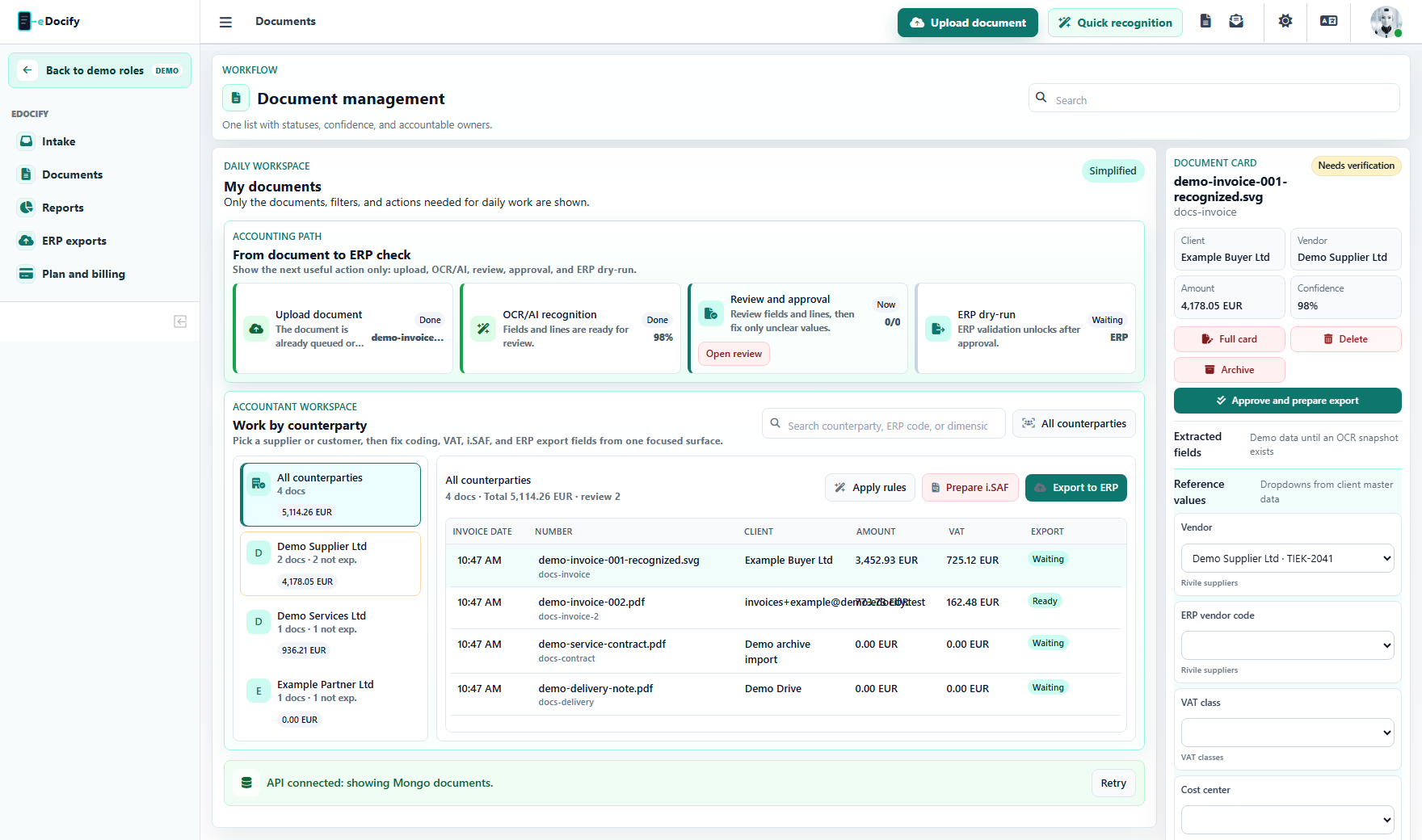
For role-by-role screenshots and menu boundaries, use the Accounting Workspace role guide.
Who it is for
- Accounting service companies receiving invoices from many clients.
- Internal AP teams that process supplier invoices, receipts, and expenses.
- Finance teams that need approval rules before ERP posting.
- Lithuanian companies that need practical workflows for Rivile and other local ERP systems.
- Growing companies that want a simpler daily workspace than a full OCR operations cockpit.
Main business promise
Accounting Workspace reduces manual invoice handling by combining:
- document intake from many sources;
- OCR and AI structure extraction;
- field and line validation;
- approval rules;
- saved list views, columns, colors, and filters per user;
- ERP-ready export profiles;
- audit and operational reporting.
The accountant should spend time only on exceptions: missing fields, low confidence values, duplicates, approval conflicts, export errors, or unknown suppliers.
Supported document types
The main document type is the supplier invoice, but the same workspace can handle:
- invoices;
- credit invoices;
- receipts and expense documents;
- logistics documents;
- contracts or supporting attachments;
- mixed batches that must be split or merged before OCR.
Document types can have different field sets, line tables, validation rules, approval policy, retention policy, and export mapping.
Daily accountant workflow
flowchart TD
  A["Client sends document"] --> B["Intake queue"]
  B --> C["OCR / AI recognition"]
  C --> D["Accounting list with status and confidence"]
  D --> E["Verification only if needed"]
  E --> F["Approval rules"]
  F --> G["ERP dry-run"]
  G --> H["Export"]
  H --> I["Archive"]
Key screens
Document list
The list is the accountant's operational queue. It should answer:
- what arrived;
- from which client and source;
- which supplier;
- invoice number and date;
- total amount and VAT;
- OCR confidence;
- approval state;
- export state;
- duplicate or risk reason.
Users can save views, choose columns, use filters, and keep their preferred density and status colors.
Document card
The document card shows header fields, line items, AI suggestions, checks, approval state, export readiness, attachments, and history. It must be compact enough for accounting work but still precise enough for review.
The card is not one fixed form for every customer. It is driven by the active client profile: field keys, labels, required flags, list visibility, ERP usage, AI instructions, lookup bindings, processing rules, and approval/export behavior are configured in administration.
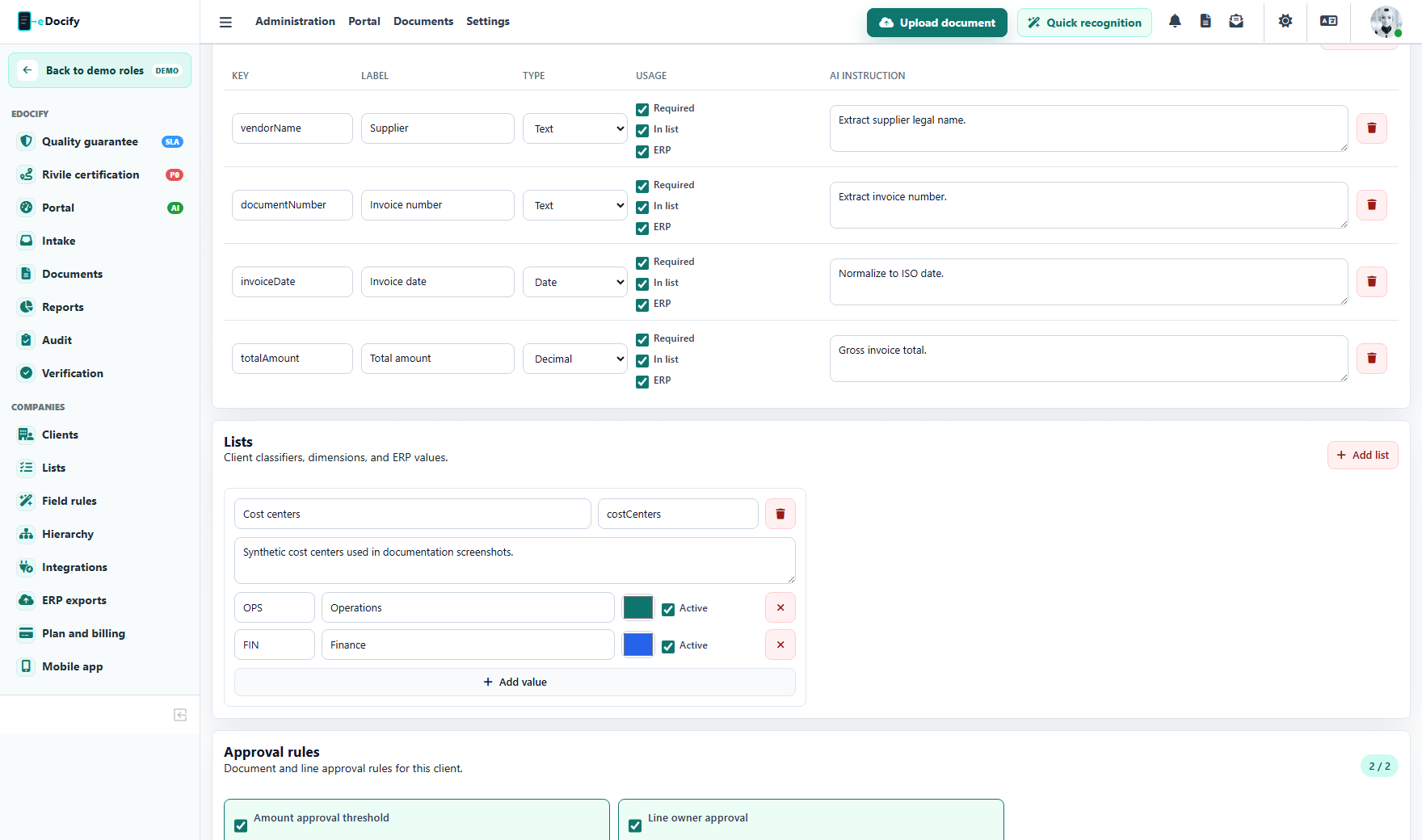
Use the Document fields, lists, and client hierarchy module when a client needs a different card structure, extra accounting dimensions, supplier lookup, ERP codes, cost centers, project fields, or line approver fields.
Intake section
The intake section is for receiving batches. For normal portal upload, the goal is not to force preview of every file. The files are tagged and routed into the OCR queue. Preview is used later in verification or quick recognition.
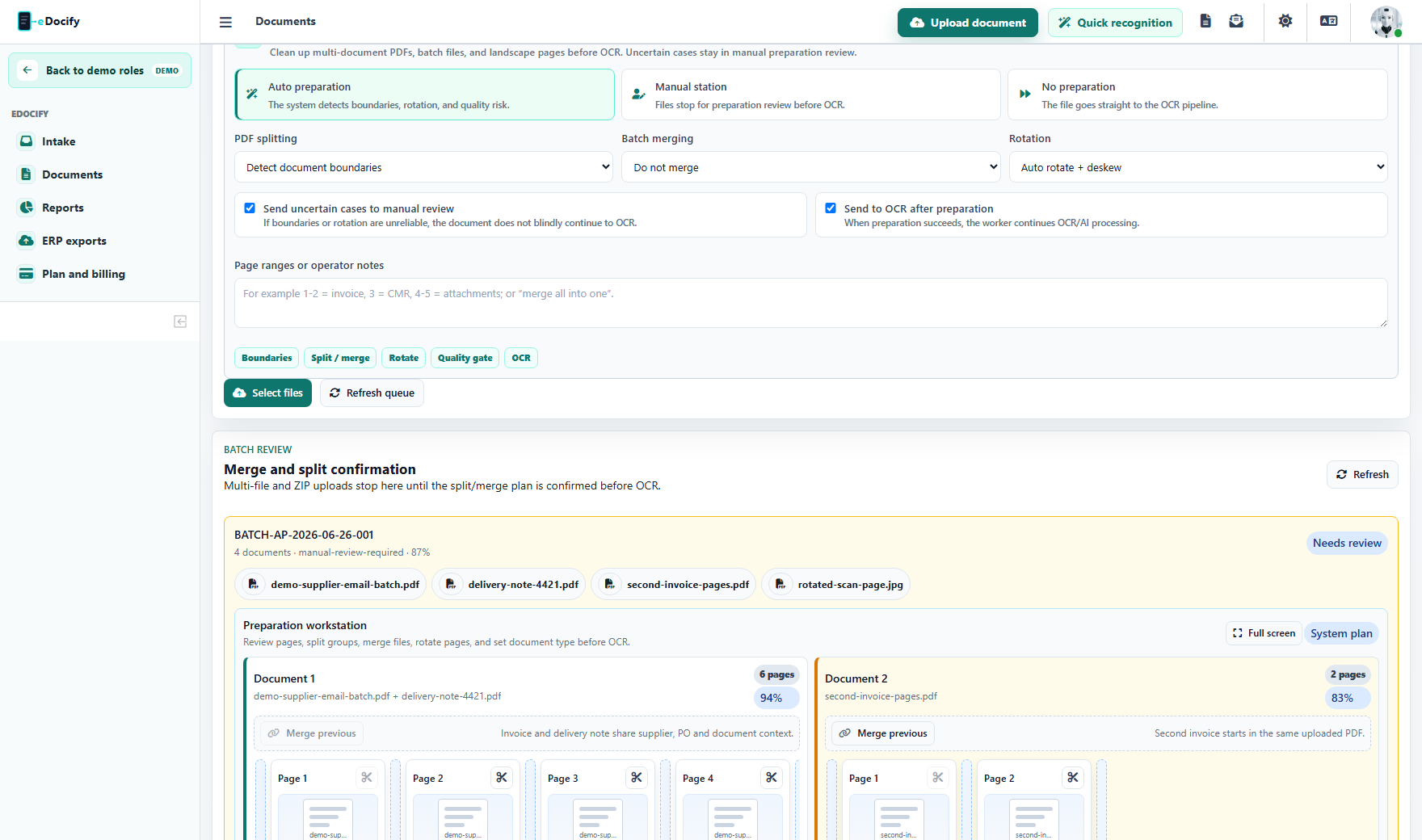
Accounting upload supports multi-file and ZIP-style batches. One upload session can contain invoices, delivery notes, email attachments, and scans. The user chooses client, source, document type, OCR/AI profile, tags, and preparation policy once for the whole batch.
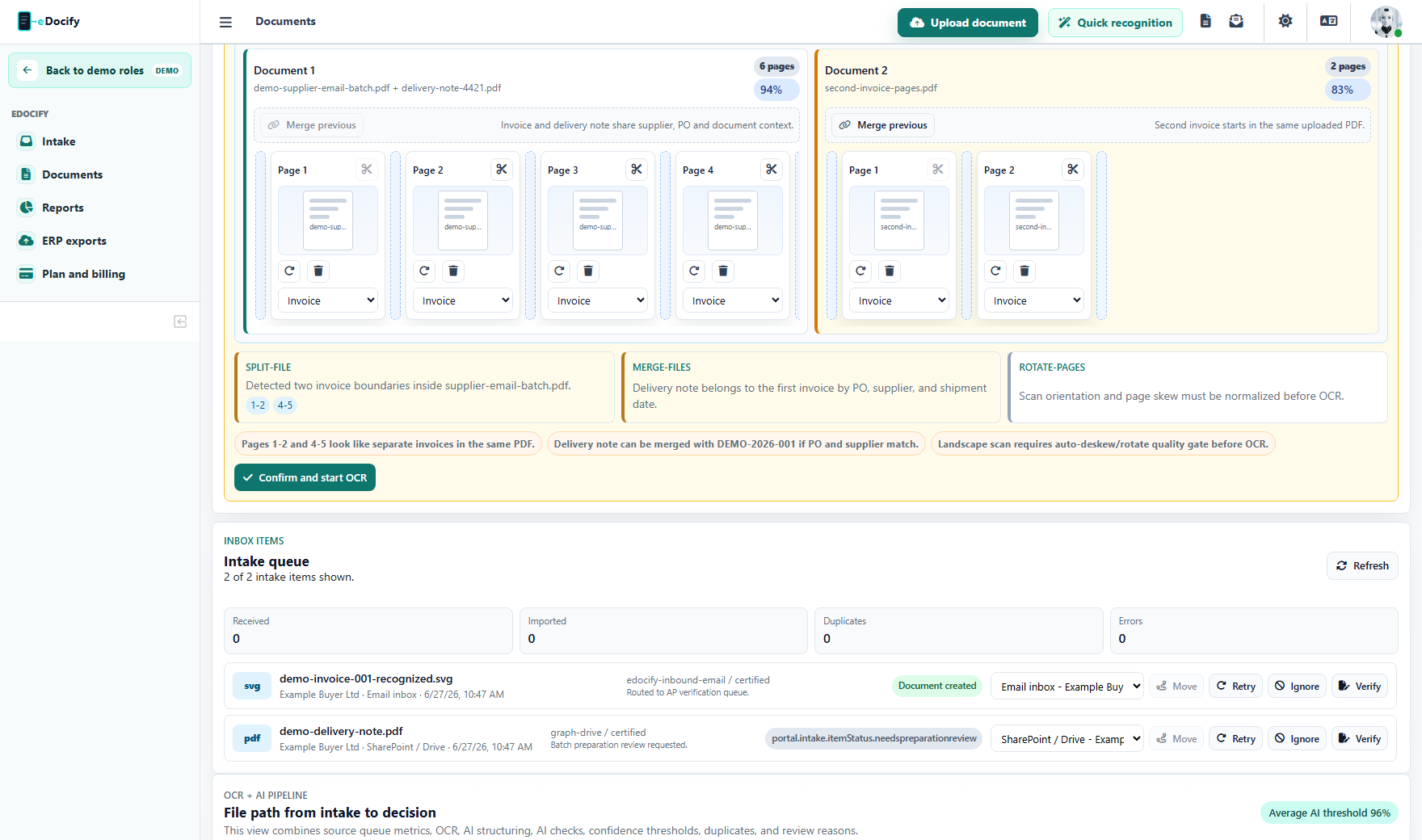
When the batch is ambiguous, eDocify can stop before OCR and ask for preparation review:
- split one PDF into several invoices;
- merge invoice and supporting files into one document package;
- auto-rotate or deskew scans;
- hold low-confidence split/merge decisions for confirmation;
- release prepared documents to OCR after confirmation.
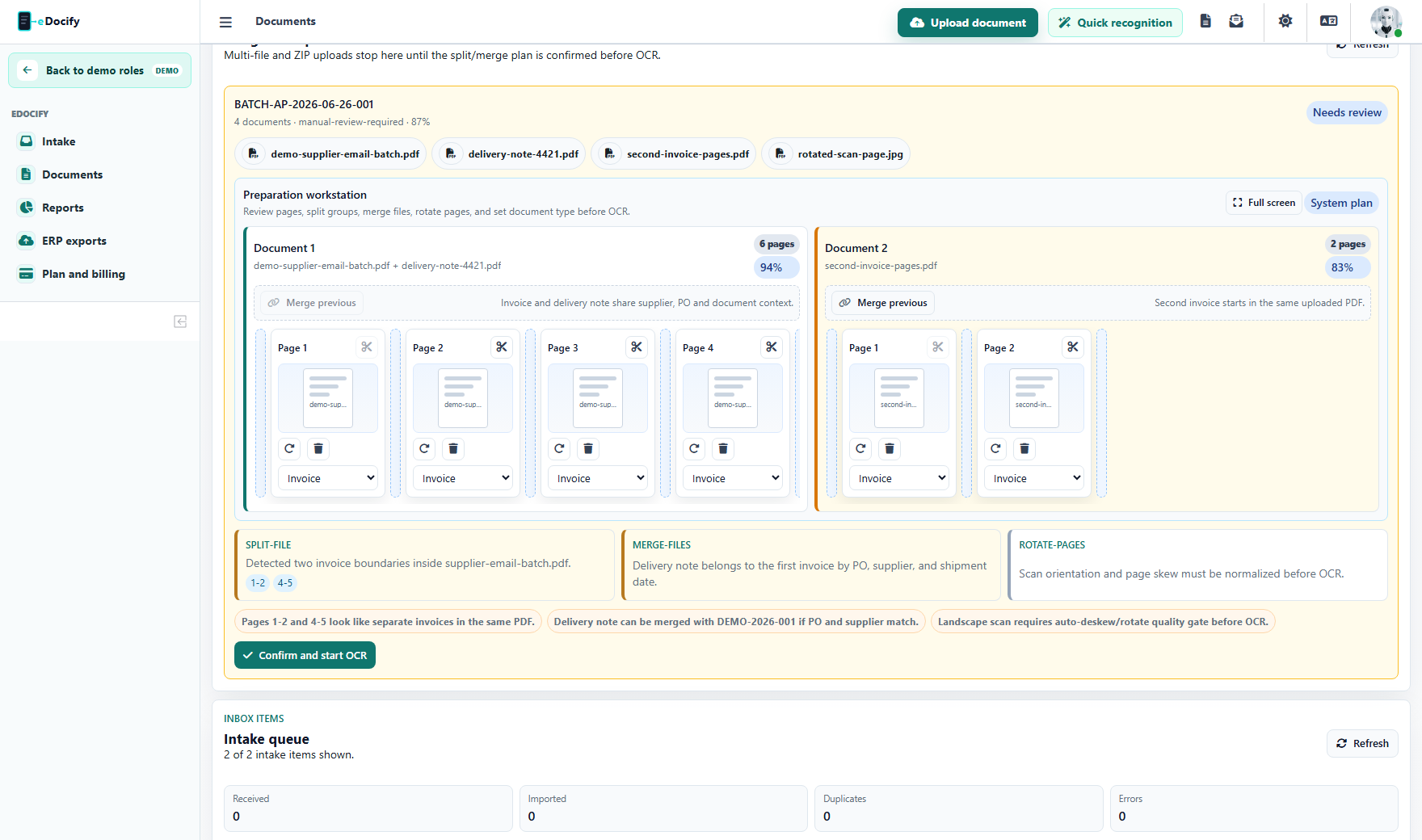
If the user needs to correct the batch manually, the preparation workbench opens before OCR. It shows prepared document lanes and page cards, so the accountant can split a multi-invoice PDF, merge supporting files, rotate pages, remove unwanted pages, and then release the prepared PDFs to OCR.
Large batches can be opened in full-screen preparation mode, so page cards and document lanes are easier to review before OCR.
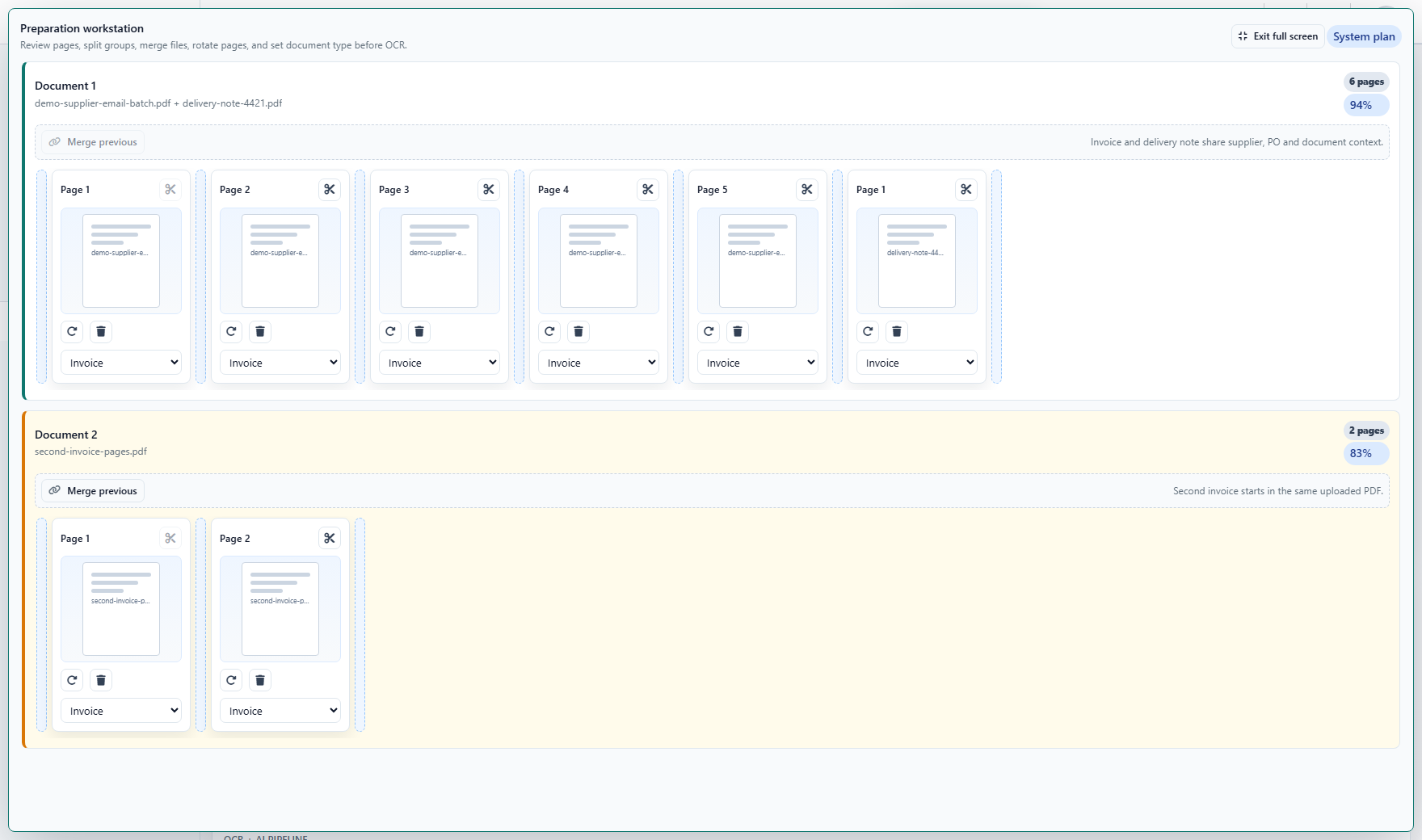
The confirmed workbench plan is sent to the backend as a structured manual preparation plan. eDocify uses it to compose the actual prepared PDF files and keeps the source documents linked for audit.
Quick recognition
Quick recognition is for interactive OCR and field correction. It is useful when a user wants to immediately inspect a file, run a specific OCR/AI provider, use region OCR, or test recognition behavior.
Approval model
Accounting Workspace supports both simple and enterprise approval:
- auto-approval for low-risk, low-value invoices;
- manager approval above amount thresholds;
- line-level approval by cost center, project, product group, or responsible person;
- substitutions and delegations;
- finance director review;
- four-eyes sampling for quality assurance;
- approval history and evidence package.
Document-level and line-level approval can work together. For example, the whole invoice can require finance approval above 5,000 EUR, while individual logistics, IT, warehouse, or project lines are assigned to different approvers by rule.
ERP export
The first priority integration is Rivile, but the architecture supports multiple ERP profiles:
- Rivile;
- Microsoft Dynamics 365 Business Central;
- SAP;
- Oracle NetSuite;
- Finvalda and other local ERP systems;
- custom API or file export.
Every export should have:
- mapping UI;
- dry-run;
- validation errors;
- retry;
- batch export;
- export history;
- archived payload evidence.
Real use cases
Accounting service company
Each customer has its own inbox and client profile. Documents arrive from email, portal, or Drive. The accounting team sees a single queue but can filter by client, SLA, source, status, or responsible accountant.
Manufacturing company
Invoices above a threshold require manager approval. Line items can be approved by different department owners. ERP export waits until all approval rules are satisfied.
Lithuanian SME using Rivile
Invoices are recognized, vendor data is matched against a reference list, VAT is validated, and the invoice is prepared for Rivile export. If currency is not EUR, exchange rates can be synchronized from an external list source.
Configuration checklist
- Create tenant or client group.
- Add companies and client records.
- Configure intake sources.
- Choose OCR/AI provider profile.
- Define document fields and line table.
- Configure reference lists and supplier lookup.
- Add field processing rules.
- Configure approval thresholds and line approval.
- Configure ERP profile and mappings.
- Enable archive policy.
- Run pilot, approve golden samples, and publish workflow.
Roles in this product
| Role | Typical responsibility |
|---|---|
| Accountant | Uploads, reviews, filters, verifies, prepares export. |
| Verifier | Corrects fields and line items in the Verification Workbench. |
| Approver | Approves assigned documents or lines. |
| Finance Director | Handles high-value or escalation approvals. |
| Client Admin | Manages client-level settings and users. |
| Tenant Admin | Manages tenant configuration. |
| Auditor | Reads history, reports, archive evidence, and audit logs. |