Verifier guide
Verifier corrects the fields and line items that OCR/AI could not decide safely. This role needs speed, keyboard navigation, reliable document preview, and a focused workspace.
Visible menu
In the screenshot audit, Verifier sees:
- Documents;
- Reports;
- Verification.
It should not see billing, global admin, AI Learning, client hierarchy, or integration configuration unless explicitly combined with another role.
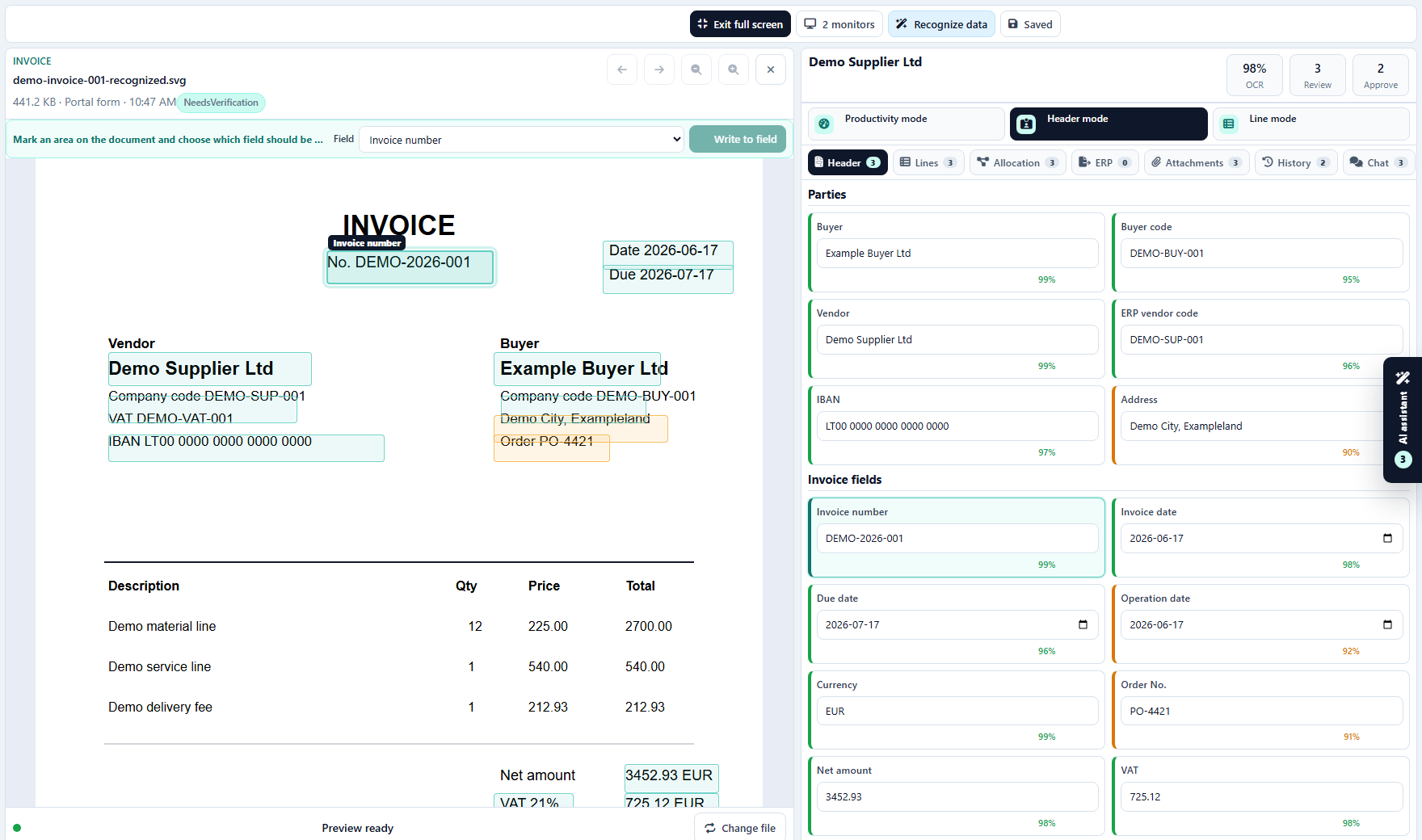
Work modes
| Mode | Use |
|---|---|
| Productivity mode | Default mode for next focus, safe accept, heatmap, QA status, and performance signals. |
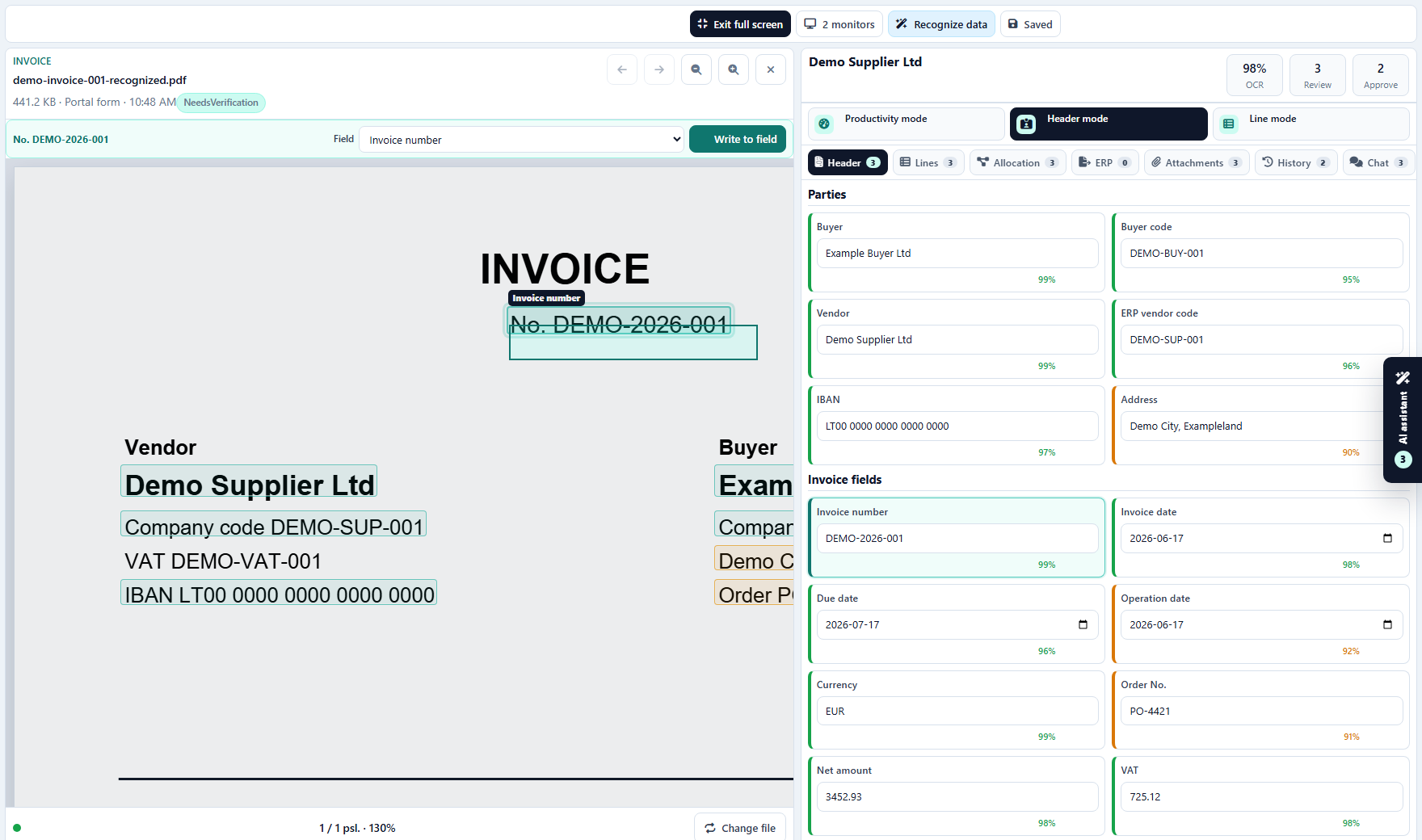
| Header mode | Correct invoice/document-level fields. |
| Line mode | Correct line items, quantities, prices, VAT, codes, approvers, and dimensions. |
Header verification
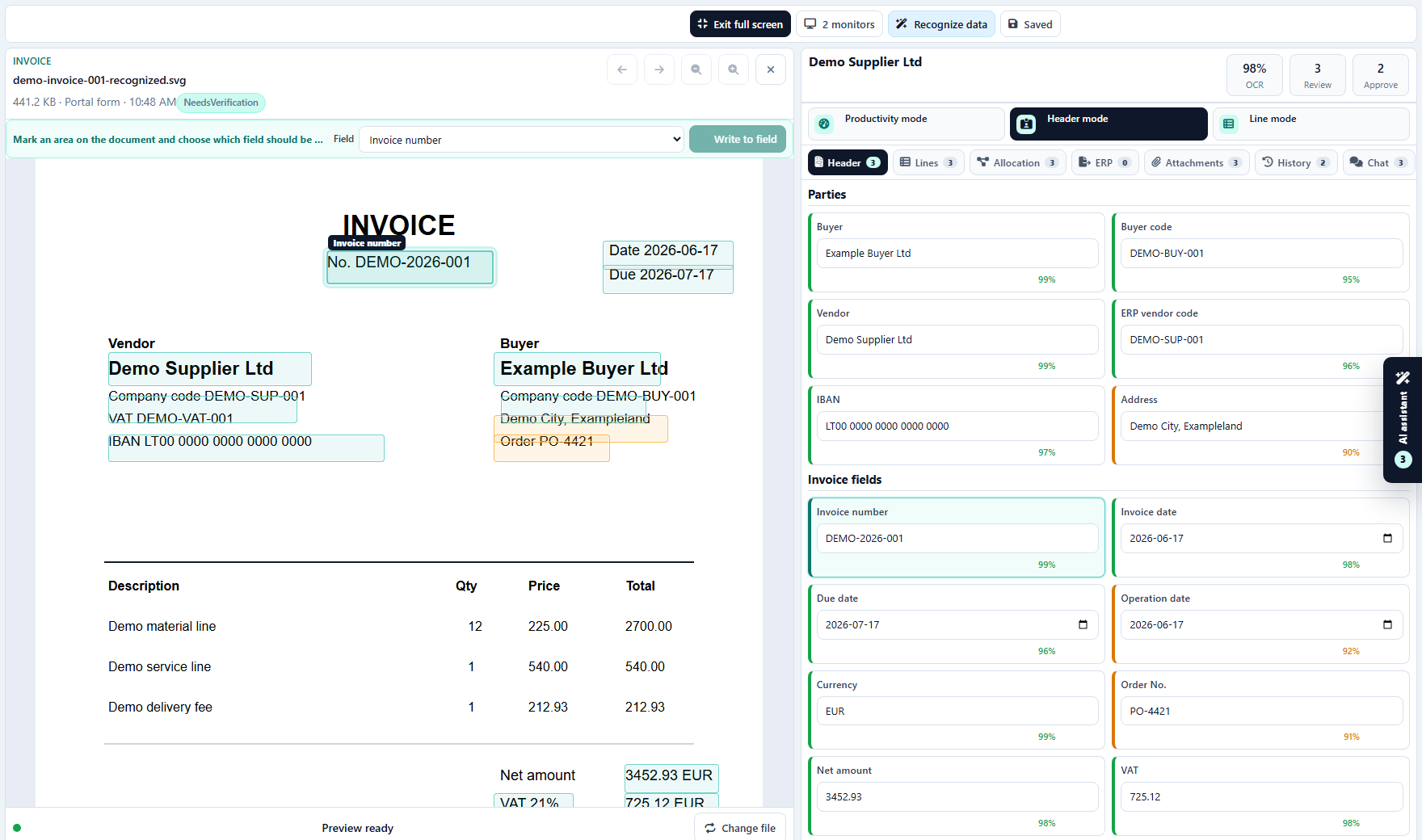
Verifier should focus only on fields that need attention:
- missing required fields;
- low-confidence values;
- validation errors;
- unknown supplier or buyer;
- date issues;
- IBAN or VAT validation warnings;
- duplicate signals.
Line verification
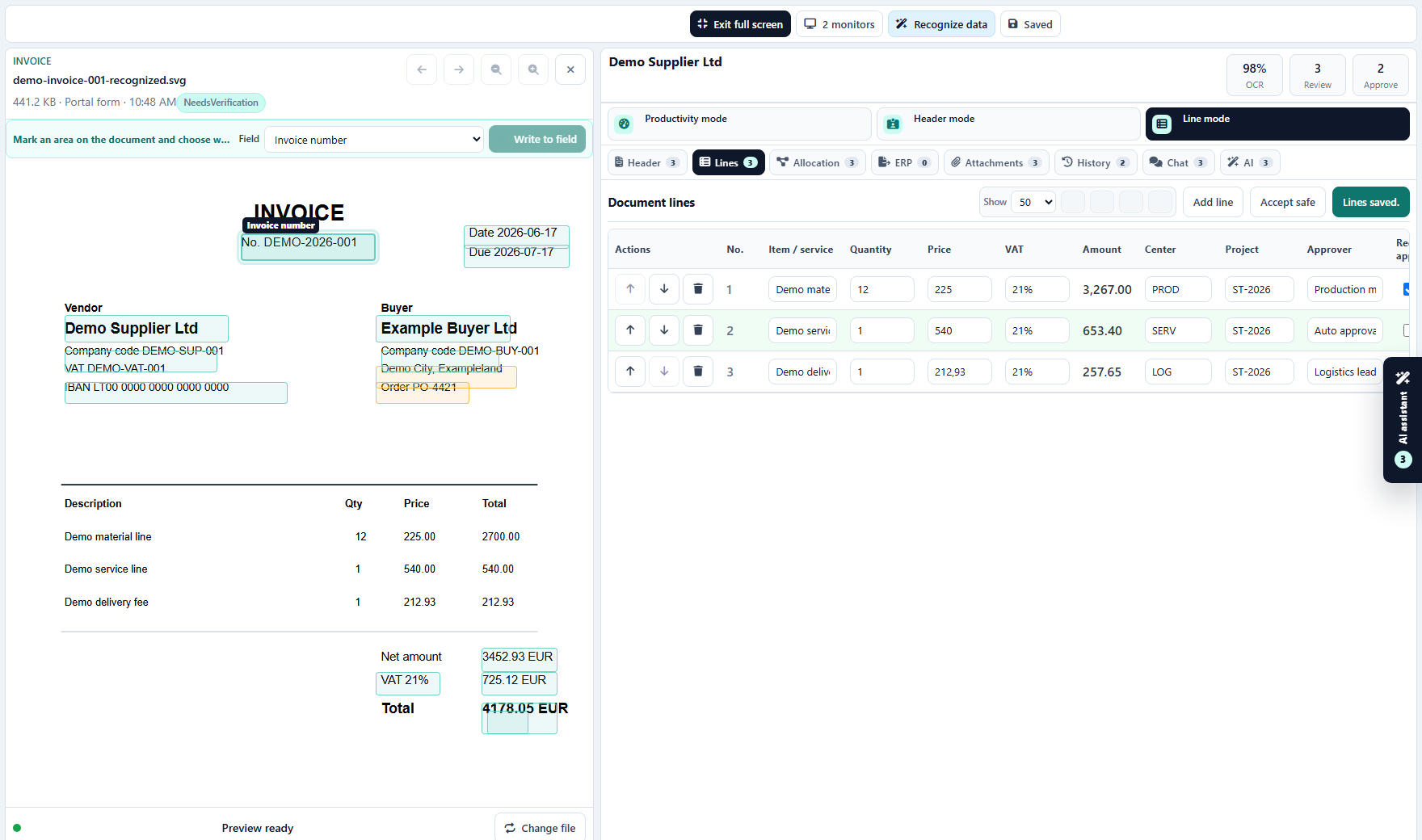
Line mode must support large invoices:
- paging or virtual scrolling;
- sticky row actions;
- add line;
- move line up/down;
- remove line;
- accept all safe lines;
- line-level approver assignment;
- cost center and project lookup;
- save line items.
Region OCR
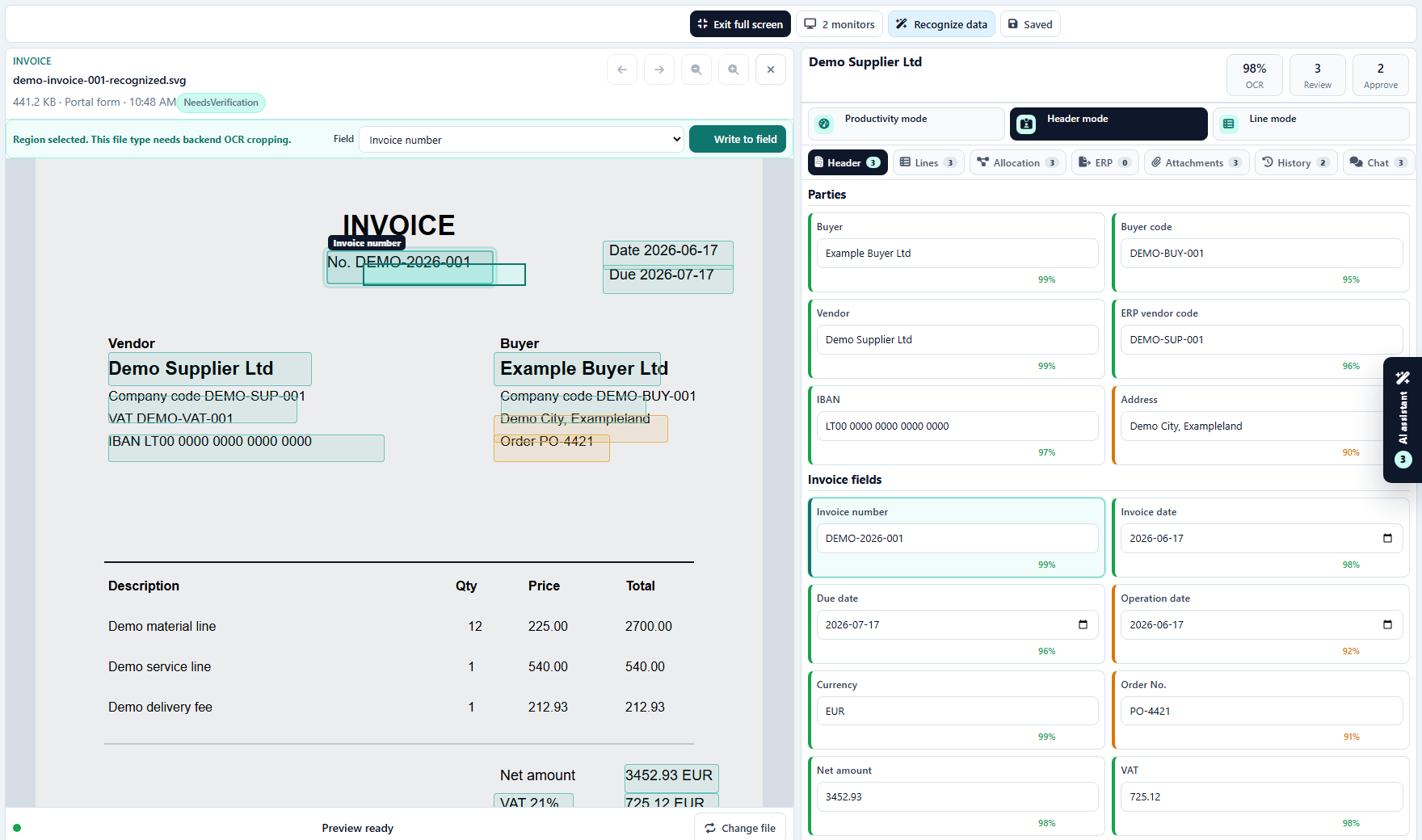
When a value is missing or wrong:
- Focus the target field.
- Mark the area on the document.
- Choose the OCR region provider.
- Write the recognized text into the field.
- Confirm that history stores the action.
The selected zone must stay aligned after zoom.
Attachments and chat
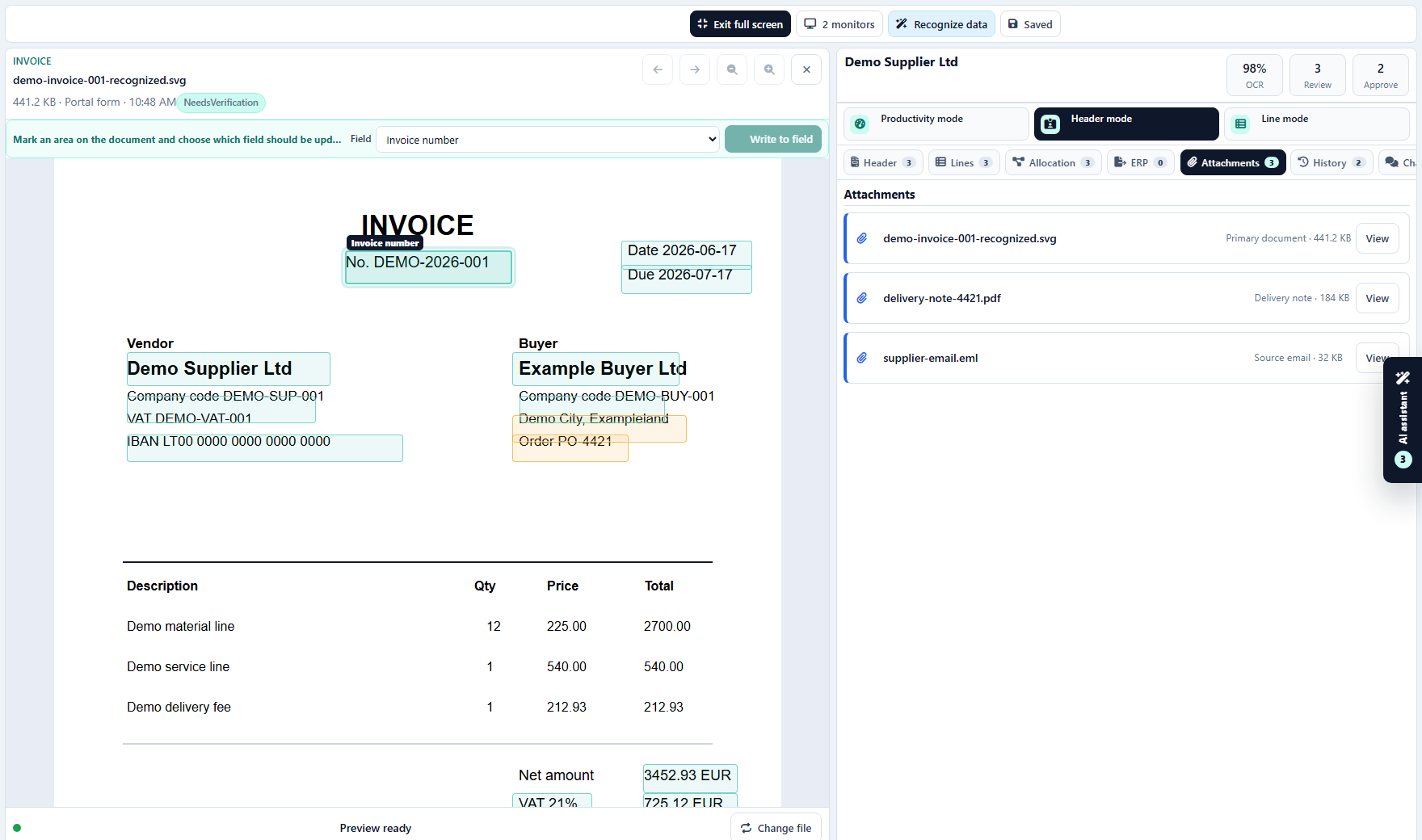
Attachments are used for delivery notes, purchase orders, emails, export payloads, and supporting evidence.
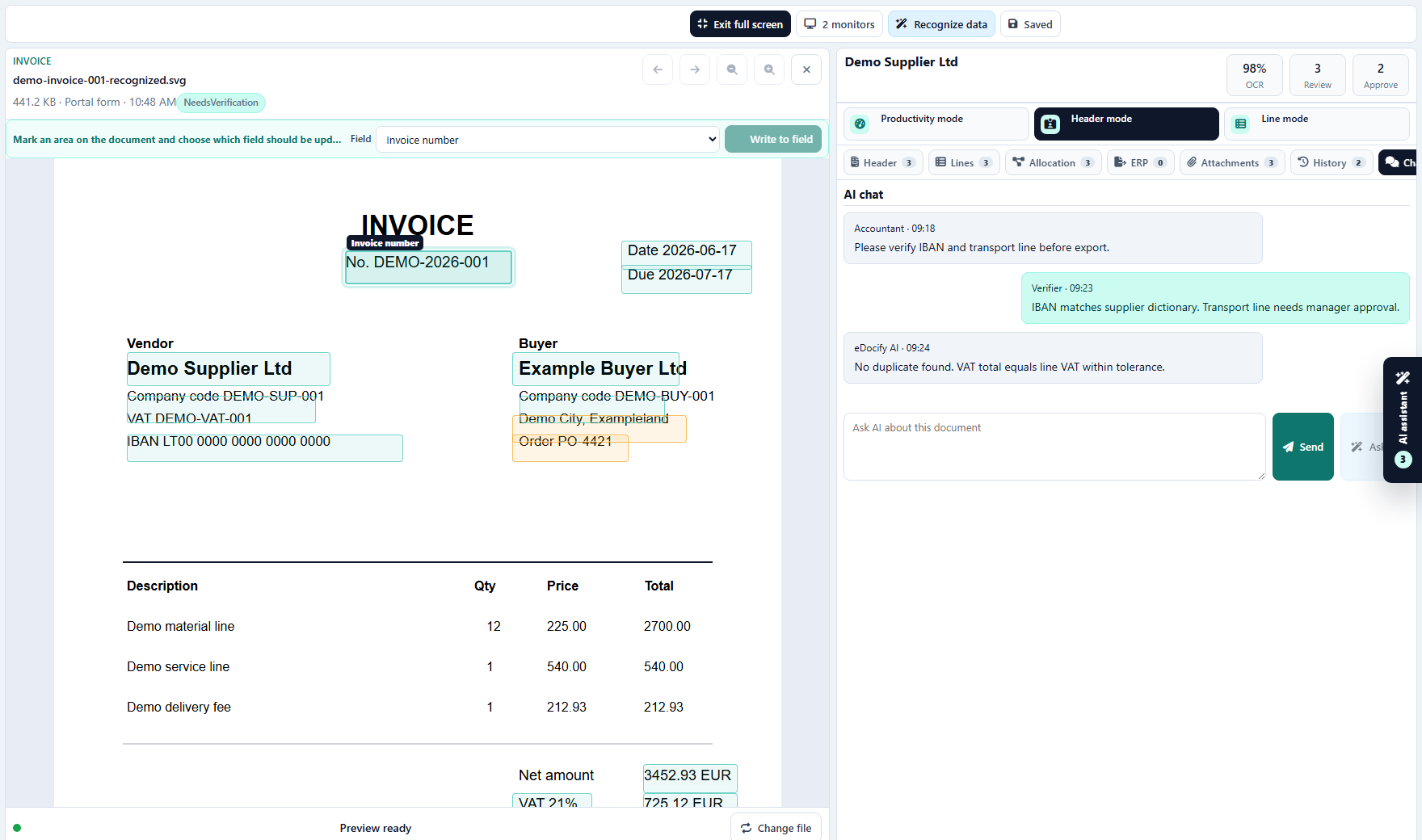
Chat keeps human and AI context on the document. The AI assistant should stay collapsed until the verifier asks for help.
Locks and concurrency
Verifier opening a document should acquire a lock:
- heartbeat keeps the lock alive;
- another user sees the lock owner;
- takeover is audited;
- lock release happens on exit or timeout.
Keyboard-first expectations
| Action | Shortcut |
|---|---|
| Next field | Alt+N |
| Previous field | Alt+P |
| Accept safe fields | Alt+A |
| Lines mode | Alt+L |
| Save | Alt+S |
| Refresh queue | Alt+R |
| Approve | Alt+Enter |
Demo test path
- Enter as Verifier.
- Open Verification.
- Switch between Productivity, Header, and Line modes.
- Focus a field and confirm document zone highlighting.
- Use Region OCR to write into a field.
- Open Attachments, History, Chat, and ERP tabs.
- Confirm the workbench remains focused and not overloaded with admin controls.