NopBridge overview
NopBridge helps connect nopCommerce with external business systems, supplier feeds, files, APIs, and operational data sources. It is built for repeatable import and export workflows where the administrator needs traceability from source to mapping to run result.
Main use cases
- Import products and related catalog data.
- Import customers from CSV, XLSX, JSON, XML, API, FTP, SFTP, and file sources.
- Map external fields into nopCommerce entities.
- Use AI-assisted mapping for the first mapping draft.
- Create categories, product attributes, specification attributes, and pictures from source data.
- Run dry runs before changing the catalog.
- Repeat imports and update existing records instead of creating duplicates.
- Schedule recurring imports and exports.
- Use NopBridge Control Center for desktop multi-store administration.
Who this guide is for
This guide is written for store owners, administrators, and implementation partners who use NopBridge inside a nopCommerce environment.
Core workflow
- Create a source.
- Detect or enter the typed schema.
- Select import or export entity.
- Generate or build the mapping.
- Add transformation and validation rules.
- Run dry run.
- Review warnings and skipped records.
- Run the real import or export.
- Check the catalog or exported output.
- Schedule the workflow when it is stable.
Main areas
| Area | Purpose |
|---|---|
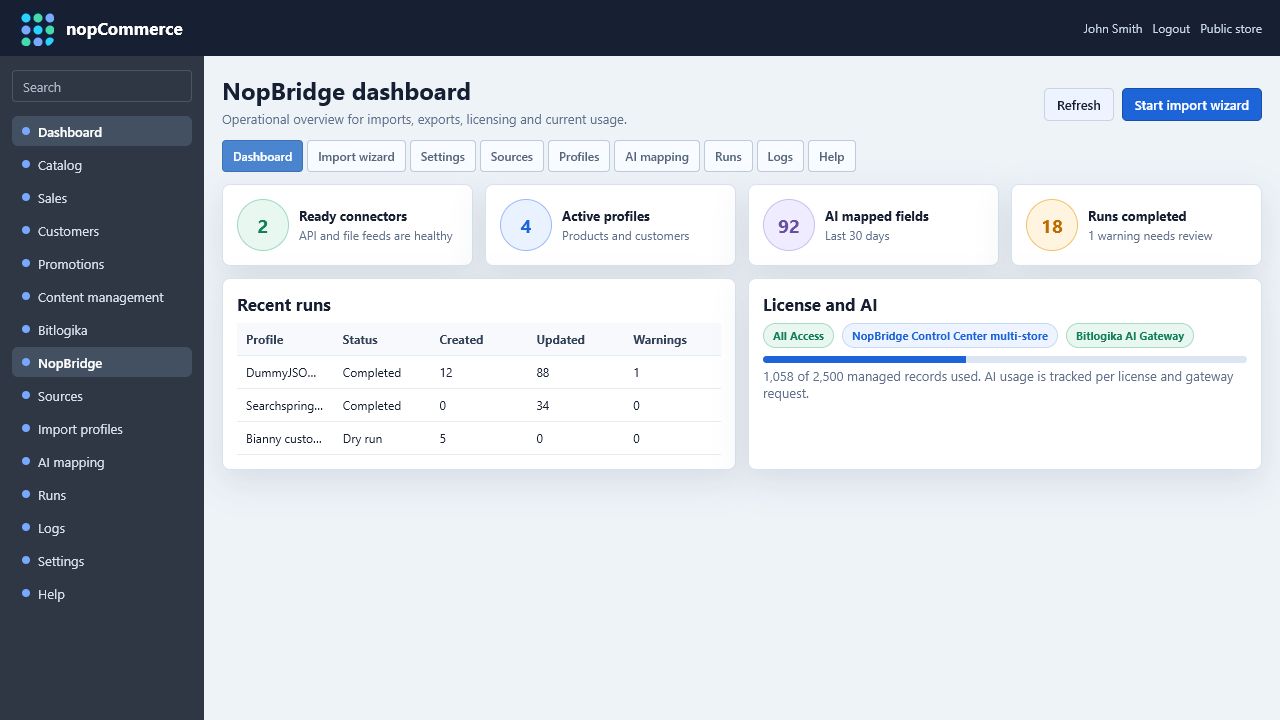
| Dashboard | Recent runs, usage, plan limits, and quick status |
| Import wizard | Guided connector, profile, mapping, dry run, and run workflow |
| Sources | File, API, FTP, SFTP, Drive, SharePoint, S3, Blob, and database source configuration |
| Profiles | Saved import or export workflow settings |
| AI mapping | AI-generated mapping suggestions with manual review |
| Runs | Dry run and real run execution history |
| Logs | Troubleshooting and operational traceability |
| Settings | License, AI gateway, connector, and agent settings |
For a full screen-by-screen explanation of the web plugin, open Web plugin screens.
Next steps
- Install NopBridge.
- Activate the license.
- Configure the first import workflow.
- Run dry run before the real import.